
Capture and Insert: photos and videos on site
Take a photo or video, say what it shows, and it goes into the right section of your report.
Take a photo or video
- 1Open your report. The bar at the bottom has Voice, Camera and Gallery.
- 2Tap the round Camera button.
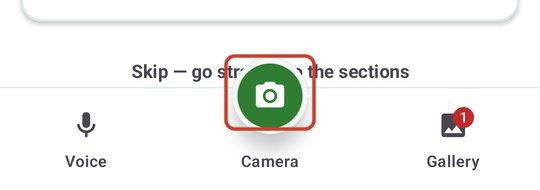
- 3Take the photo. To record a video, switch from PHOTO to VIDEO first, then tap the red button to start and stop.
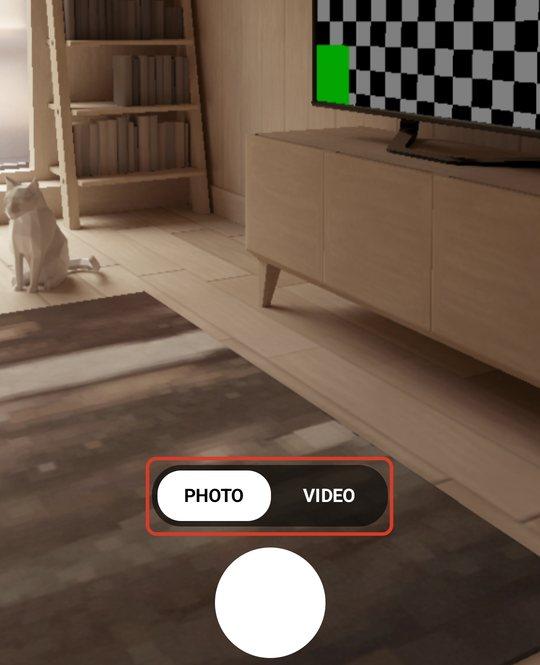
Video is limited in length, and the clock on screen shows how long you have used. If the phone has no microphone permission, JetInspect warns you that the video will have no sound. See Adding video clips for more on video.
Say what it shows
After the shot, the next screen asks What's the issue? Choose how to answer:
- 1Tap the microphone (Say it, I'll find it) and say what you see, such as “cracked pipe”. JetInspect shows matching comments as cards.
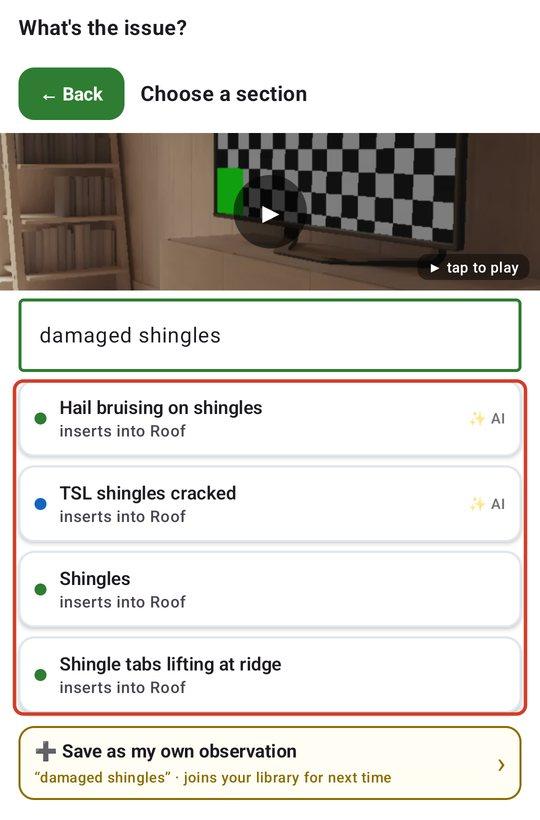
- 2Or tap ✏️ Browse or type to search your comments or pick a section and browse.
- 3Tap the comment that fits. It is inserted into the right section as an observation, with your photo attached, and the next shot is ready.
Speaking can also bring up other cards, such as Section photo, Property photo and Data plate cards, when your words name one. If nothing fits, tap ➕ Save as my own observation and it joins your library for next time. Tap Skip to decide later.
Comment search is covered in Finding the right comment.
See what happened, and undo it
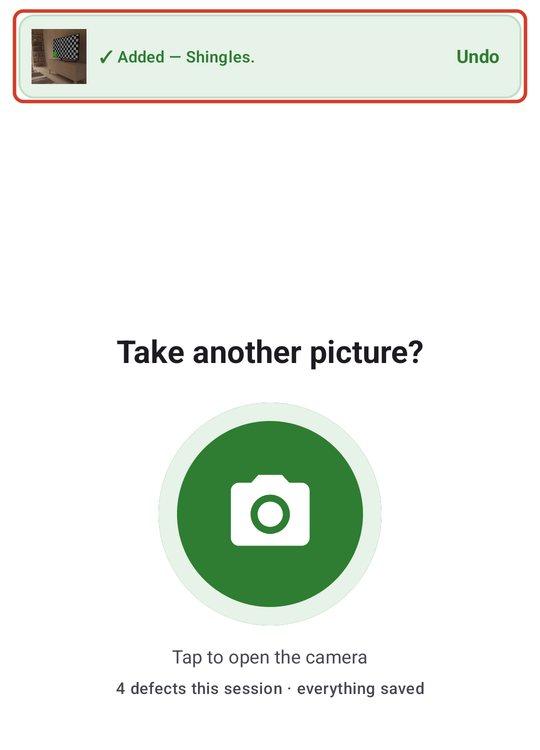
There is no confirmation box to tap. The card you pick flashes green with a check mark, the phone gives a short buzz, and a banner shows what was added, such as ✓ Added followed by the comment. You land on the page that asks Take another picture? If it was the wrong comment, tap Undo on the banner and the same photo comes back for you to choose again.
Tap the camera to keep going, or ✅ Done taking pictures when you are finished.
Photos that belong to a section
Some photos show a whole area, not a problem: the roof, the attic, the panel wall. These are section photos. They appear with the section in your report, not as an observation.
- 1After you take the photo, say the section name (“roof photo”), then tap the Section photo card.
- 2Or open the section yourself, find Section photos, tap 📷 Add a section photo and choose New to shoot or Import to use a photo already on your phone.
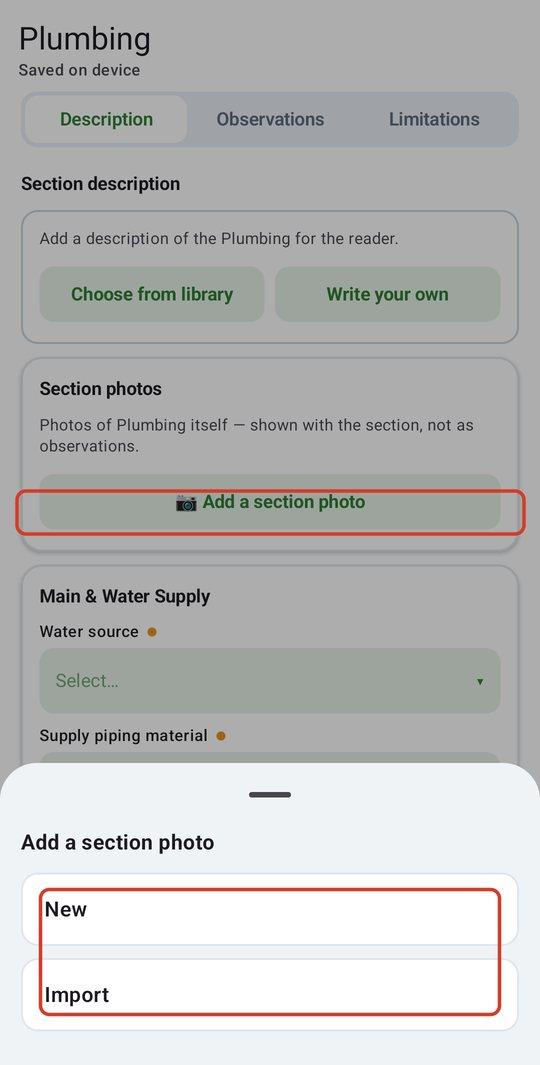
Tap a section photo to move it back to waiting photos or delete it.
Add photos from your phone's gallery
- 1Tap Gallery in the bottom bar and choose the photos and videos. They come up one at a time, just like new ones.
- 2If photos are already waiting, a Photos sheet asks first. Add everything from this device now imports more. The other card says how many photos aren't in your report yet; tap it to go through them.
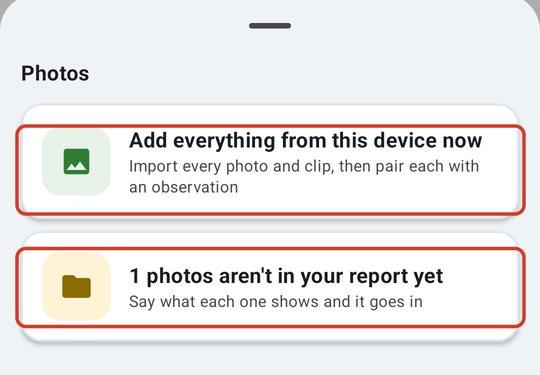
- 3Say or pick what each one shows, as above. The counter at the top shows where you are, such as Photo 3 of 8.
Inside an observation, tap 📷 Add photo/video and choose New or Import to add to that observation directly. The same New and Import choices appear when you add property photos.
On the web
The phone is where you capture. On the web you open an observation and use 📷 Add photo/video to attach photos you already have. To go through photos quickly at a desk, see Rapid Photo/Video Review.