
Finding the right comment
Type, speak or browse to find the comment you want, and save your own words when nothing matches.
Search by typing
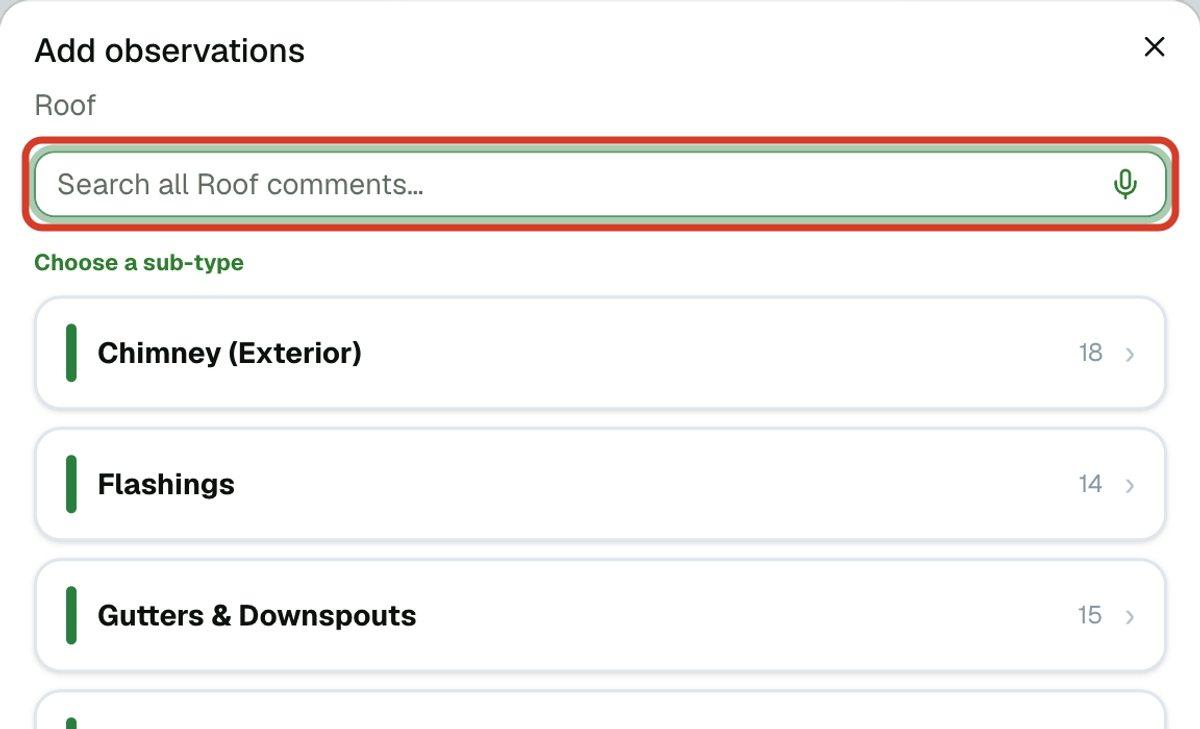
- 1Open a section and click the Observations tab.
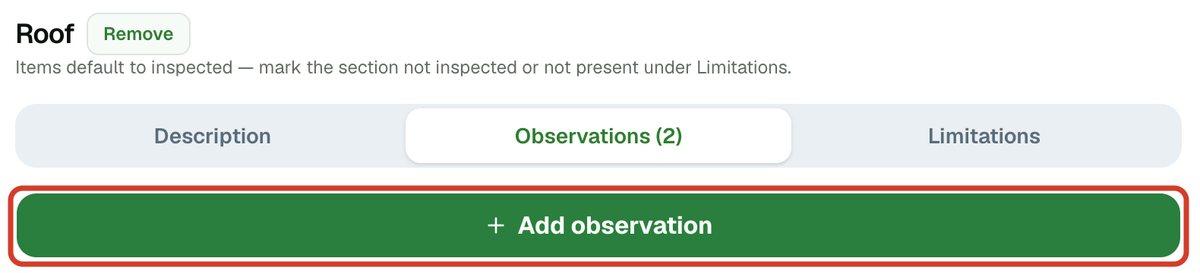
- 2Click Add observation.
- 3Type a few words in the search box, such as missing shingles. Matches appear under Matches, best first.
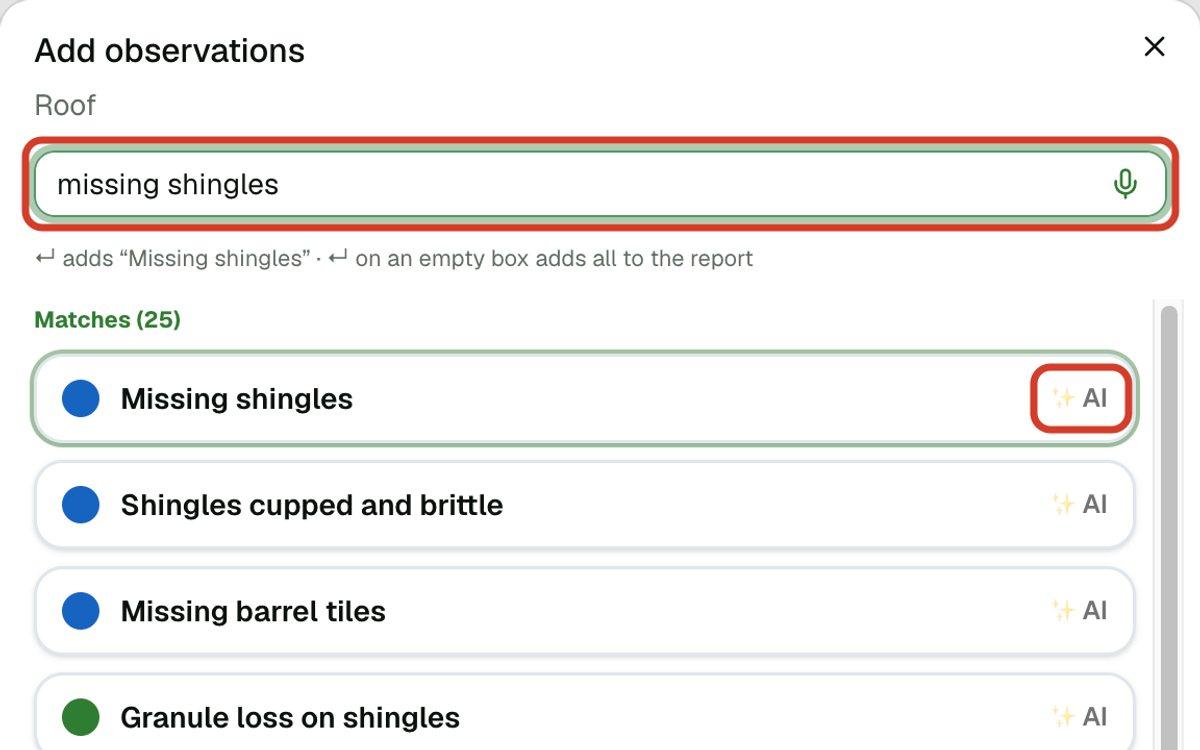
- 4Click a match to select it. Click more to select several.
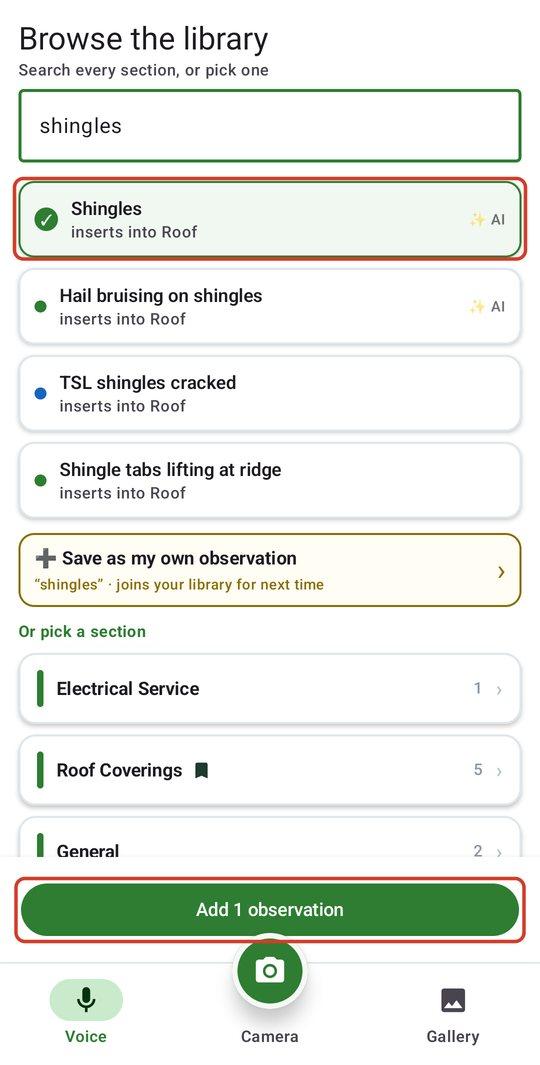
- 5Click the green button at the bottom, which reads Add 2 observations or however many you picked.
Search by speaking
- 1In the search box, click the microphone.
- 2Say what you saw, such as “furnace flue rusted”. The words fill the search box.
- 3Click the match you want.
If you are on the phone and in a section, you can also tap the microphone inside the browse search box (the one marked Dictate).
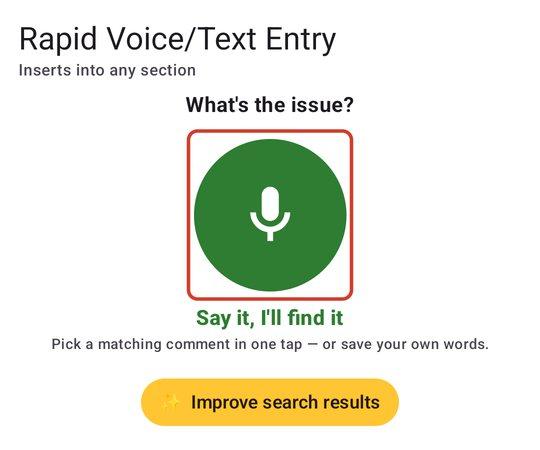
Rapid Voice/Text Entry is the same idea for the whole report. Use it to speak or type an observation with no photo, and each match goes into its own section. On the web it is in the left column. On the phone it is the microphone button at the top of the report.
What the ✨ AI mark means
A match marked ✨ AI was found from what you meant, not only the words you typed. Typing “shingles blowing off” can still find Wind-lifted or creased shingles. The mark is information, not a button: click the row as you would any other.
To turn it off or back on, open Settings > AI settings on the web and use AI features, or on the phone use Comment search in Settings. It applies to both. With it off, typing still works.
- 1Open Settings > AI settings.
- 2Under AI features, click Turn off or Turn on.
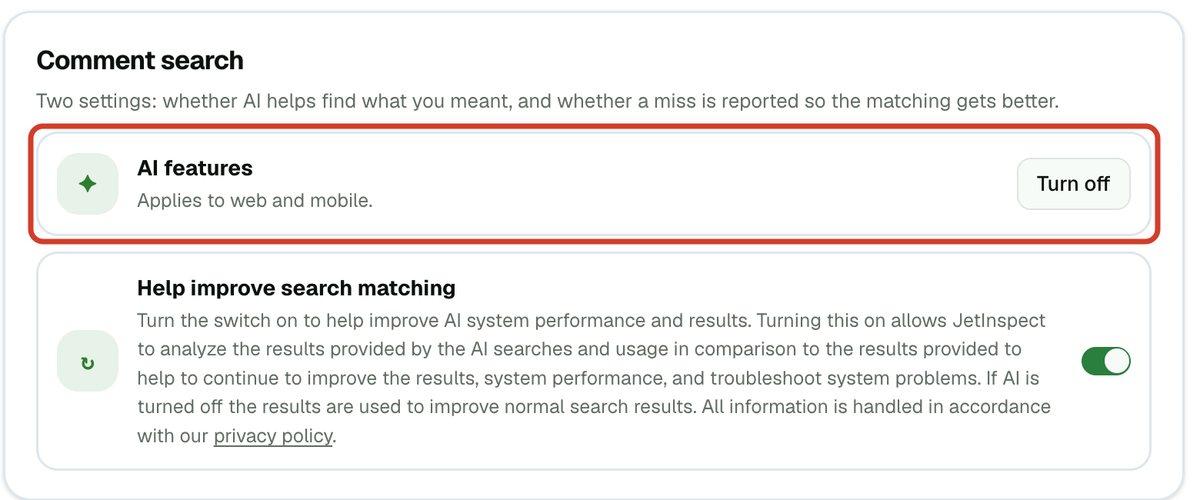
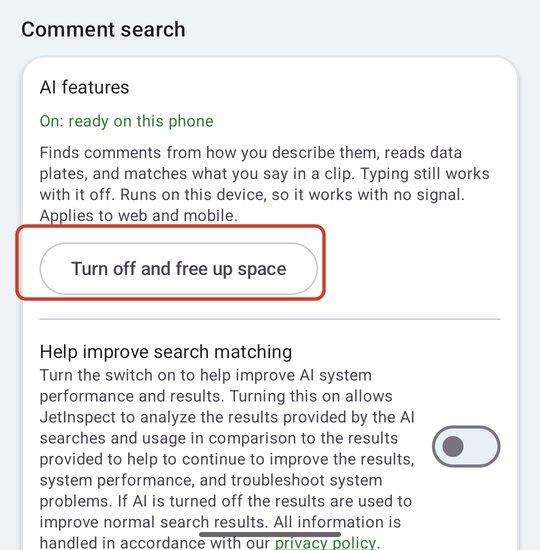
The other setting, Help improve search matching, is a switch that lets JetInspect learn from searches that missed. You can also reach it from the amber Improve search results button under the search box, until you turn it on.
Browse by group
With the search box empty, you can click through instead.
- 1Under Choose a sub-type, click a card, such as Flashings. The number is how many comments it holds.
- 2Some cards open into Groups. Click one to go down a level.
- 3A short Suggested list comes first when there is one. All comments follow under All · A–Z.
- 4Click ← Back to go up a level.
Typing while you are inside a group filters just that group. Clear the box to see the group again.
When nothing matches
Type what you want to say in the search box, then use the dashed green button under the matches.
- 1Type your own words in the search box.
- 2Click or tap ➕ Save as my own observation.
Your words go into the observation now and into your own library, marked Mine. Next time you search, they are there. To build up your own wording on purpose, see your own comments.