
Charging a travel fee by distance
A travel fee worked out from the driving distance to each property, added to your quotes and online scheduling.
Check your business address
The distance is measured from the address in Settings > Your business. Fill in the street, city, state and ZIP. Without it, the travel fee can't be worked out.
Set up your travel fee
- 1Click Services & Payments in the left menu. Services & pricing opens first.
- 2Click Add add-on, or open the travel fee you already have. Click its name at the top to rename it, for example “Travel fee”.
- 3Under How you price it, choose By distance.
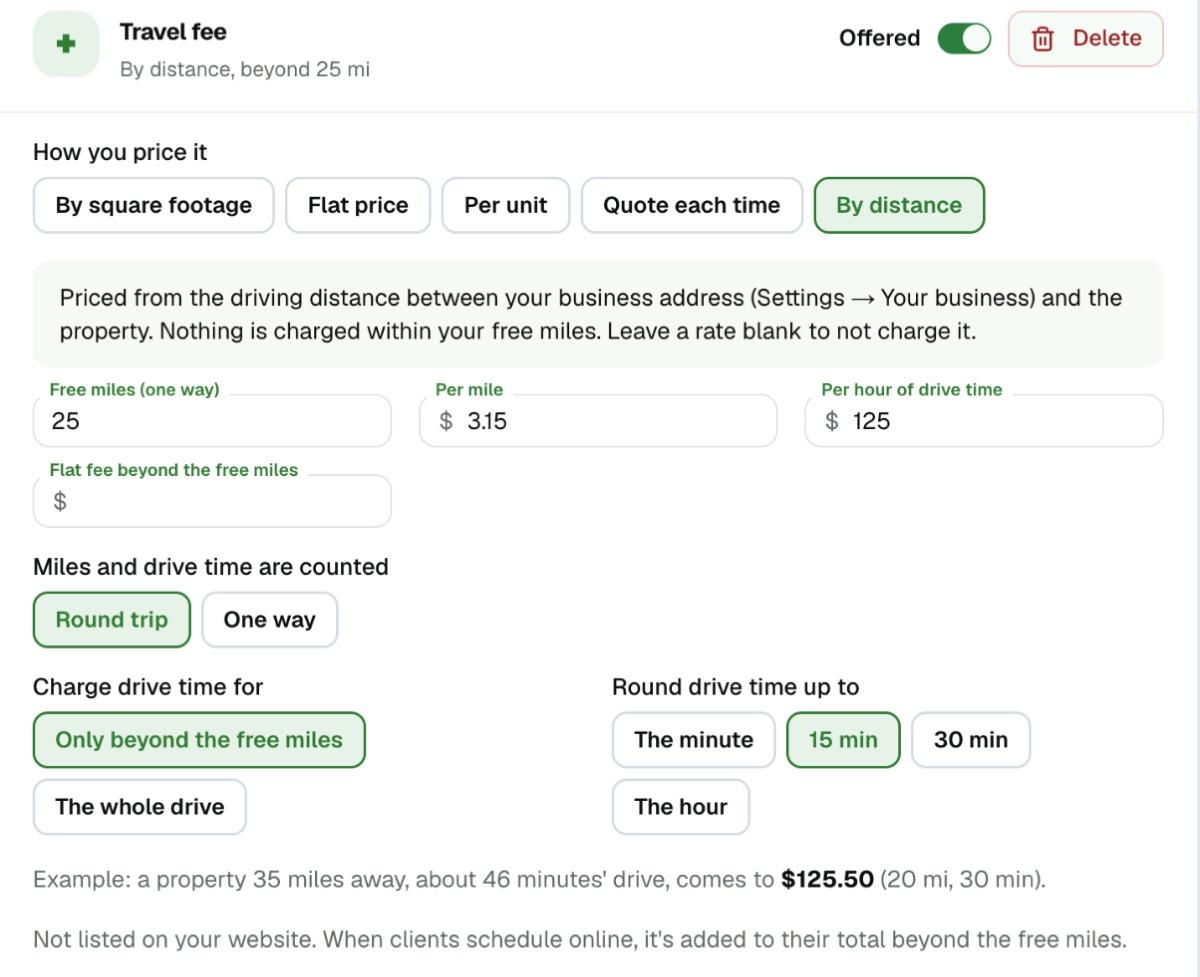
- 4Enter your Free miles (one way): the distance you cover at no charge. A property inside it has no travel fee.
- 5Under Miles and drive time are counted, choose Round trip to charge the drive there and back, or One way.
- 6Fill in what you charge: Per mile, Per hour of drive time, or both. Leave one blank if you don't charge for it.
- 7Under Charge drive time for, choose Only beyond the free miles or The whole drive. Under Round drive time up to, choose how drive time is rounded: The minute, 15 min, 30 min or The hour.
- 8If you also charge a set amount whenever you go beyond your free miles, enter it in Flat fee beyond the free miles.
The Example line underneath shows what your rule charges for a property 10 miles past your free miles, so you can check it before you use it. Changes save as you type.
On your quotes
- 1Open Schedule/quote inspection and enter the property address.
- 2Once the address is complete, your travel fee ticks itself if the property is beyond your free miles, with its price. Underneath it says how far the property is, in miles and minutes each way.
- 3Inside your free miles it stays unticked, with nothing to pay.
To waive the fee for a client, untick it. It stays off on that quote, even if you change the address. Reopening an appointment that's already scheduled never adds the fee by itself, so the price your client accepted doesn't change. Tick it there if you want to add it.
When clients schedule online
Your travel fee isn't listed among your services on your website, and clients can't tick it. When a client schedules online and enters the address, the fee is added to the total they see before they schedule, if the property is beyond your free miles.
If the distance can't be worked out
The note under the travel fee says why:
- 1No business address: add it in Settings > Your business.
- 2No driving route found: check the property address.
- 3Anything else, or no connection on the phone: tick the travel fee and type its price on that quote.
If you work for an inspection company
The company's owner sets the travel fee for everyone, and the distance is measured from the company's address.