
Switching from other inspection software
Bring your comment library from Spectora, HomeGauge, Home Inspector Pro, InspectIT or a spreadsheet.
Find your program
Spectora. Use Spectora's own export to save your template as a spreadsheet (an .xlsx file). Import that file as it is. JetInspect recognizes it and matches its columns, including the comment type and the Recommendation column.
HomeGauge. Import your HomeGauge template backup file, the one that ends in .ht5. It is usually in the Documents > HomeGauge > Templates folder on your computer. Import it as it is.
A spreadsheet. Any CSV or Excel file with your comments in it. The steps are in Importing your comments from a spreadsheet.
Home Inspector Pro. Your template file ends in .tpz. It is usually in the Home Inspector Pro > Data folder inside Program Files (x86). Email it to admin@mobileinspectionapps.com and we import it into your account.
InspectIT. Copy your library database off your phone (a file named AHIT.sqlite3 or InspectIt.sqlite3) and email it to admin@mobileinspectionapps.com.
ISN, Palm-Tech, Word or anything else. Email whatever your program exports, or your comment document, to admin@mobileinspectionapps.com. If your program can save your comments to a file, we will take a look.
Import a Spectora or HomeGauge file
- 1Click Templates & Library in the left menu, then the Library setup tab.
- 2Under Import comments from a spreadsheet (CSV or Excel), click Choose file and pick your file. Nothing is added yet. A notice says the file was recognized and how many comments are in it.
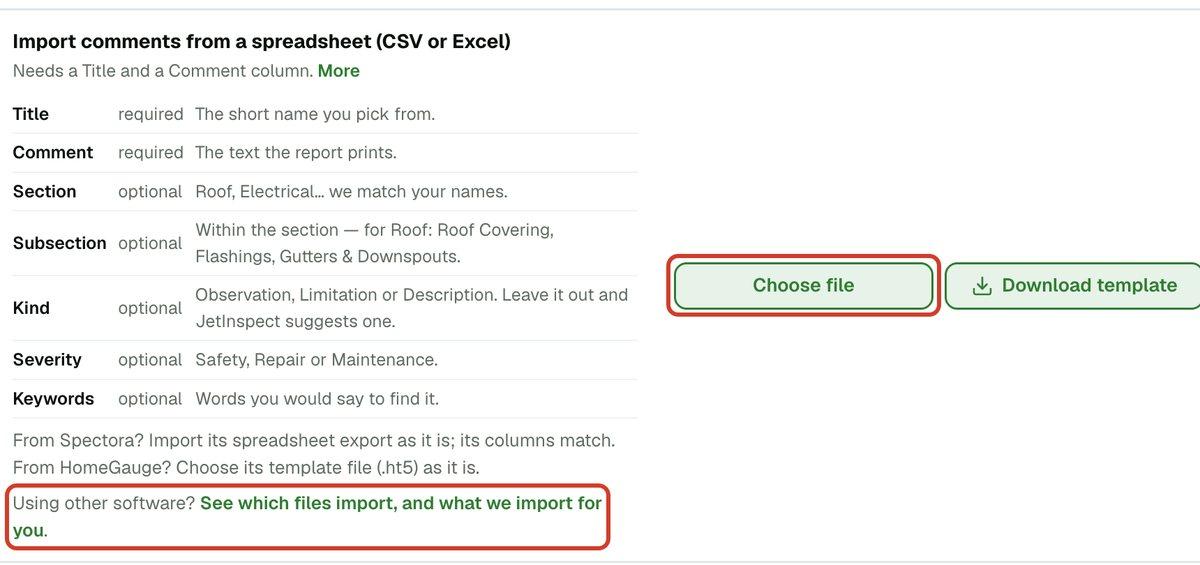
- 3Answer anything marked Needs you, then click the green button at the bottom, such as Import 120 comments.
The import screen works the same for every file, and it is explained step by step in Importing your comments from a spreadsheet.
What is imported
Your comments are imported word for word, with your sections and subsections, your severity levels (you match your own names to JetInspect's), and each comment's type: observation, limitation or description. A comment with no title gets one drafted from its text, and your own shorthand is kept so it still finds the comment in search.
A HomeGauge file also brings its description choices, and the comments you sent to the summary import as Repair. The notice on the screen lists what is imported and what isn't, with a count for each, so the numbers add up to your HomeGauge library.
What isn't imported
Fill-in sentence builders only work inside the program they came from, so they are not imported. The notice counts them for you. Other things left out of a HomeGauge file are report headers and labels, empty comments and scope paragraphs. For those, set your wording once under Templates & Library > Scope statements.
Photos don't transfer from any other software, and neither do your past reports. JetInspect doesn't import old reports. Your new reports are saved to your own Google Drive.
If you work for an inspection company
Importing is for the company owner or an administrator. If you are an inspector on a company account, the import row does not appear on your Library setup tab, so ask your administrator to import the library.