
Taking card payments
Connect Stripe so clients can pay online, choose who covers the card cost, and see where payments show up.
Connect your Stripe account
- 1Click Services & Payments in the left menu, then the Payment settings tab.
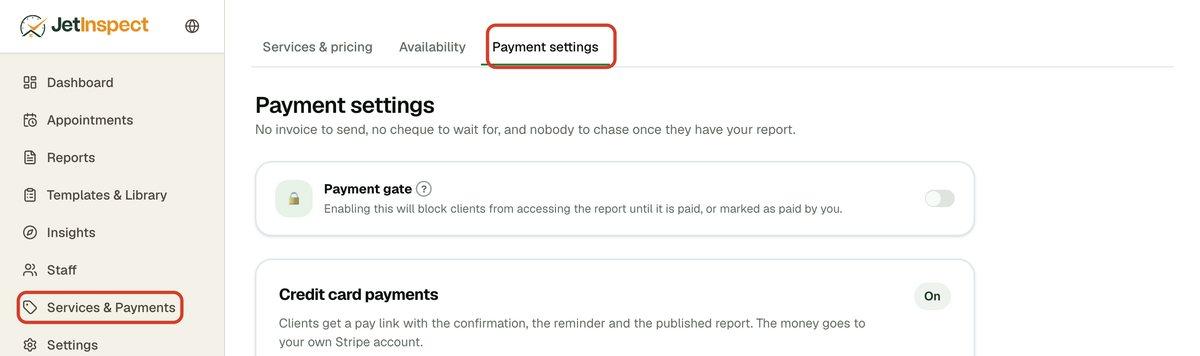
- 2Under Credit card payments, click Sign up. Stripe opens its own sign-up. Give it your business and bank details.
- 3When Stripe sends you back, the page says Stripe is still verifying you until Stripe finishes. You can't take cards until then. If setup stops partway, click Continue to pick up where you left off.
Stripe handles the sign-up, so you never enter bank details in JetInspect.
Turn card payments on
- 1Once Stripe has verified you, switch on Accept card payments. An On badge shows beside Credit card payments.
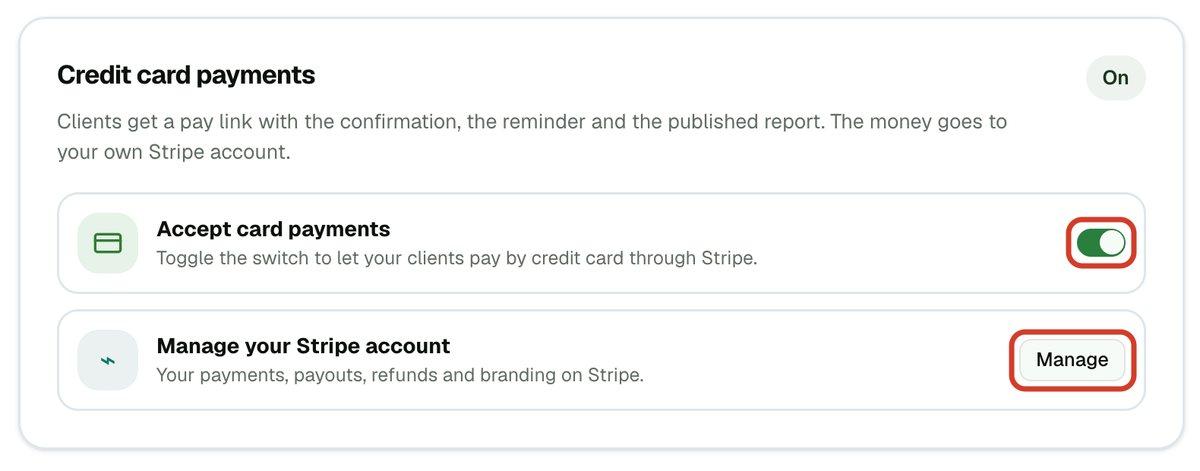
- 2To pause card payments later, switch it off. Your Stripe account stays connected.
Click Manage beside Manage your Stripe account to open your payments, payouts, refunds and branding on Stripe. Your client's receipt comes from Stripe and uses the business name and logo you set there, so check them. A Payouts off tag means you can take cards but no bank account is attached yet, so the money waits in Stripe.
Choose who pays the card cost
Stripe charges a card fee on each payment, about 3% (2.9% plus 30 cents). JetInspect adds nothing on top. You pick who covers it.
- 1Find Increase your fees to cover credit card processing below the Stripe card.
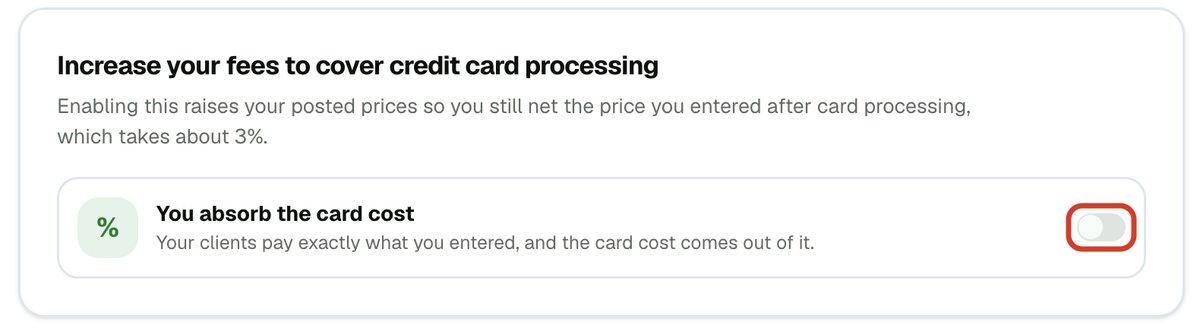
- 2Leave it off (You absorb the card cost) and your clients pay exactly the price you entered. The card cost comes out of it.
- 3Or switch it on (Your prices cover it). Your posted prices rise so you still net the price you entered. A worked example from your own sheet shows what changes.
With it on, a Your posted prices list appears on the page. Use those figures on your website, brochure and directory listings so they match what JetInspect quotes. Your clients see one price and no mention of a card fee.
What your client sees
Your client gets a pay link with the scheduling confirmation, the reminder and the published report. It opens their appointment page, where a button shows the amount to pay by card. They enter an email for the receipt, choose how to pay and confirm. Cards work, and so do wallets such as Google Pay and Apple Pay when their device offers them. Afterward the page says Payment received.
Where payments show up
On a published report, the Paid badge appears in your Reports list. The report's sharing panel says Paid by card and the date. Every payment, payout and receipt is in your Stripe account: click Manage on the Payment settings page.
Holding a report until it is paid, and giving a refund, have their own guides.
If you work for an inspection company
Card payments belong to the account owner. Every payment goes to the owner's Stripe account, and the owner sets it up and handles refunds. An inspector in the firm doesn't see these settings.