
Your reports in Google Drive
Connect your Google Drive, what JetInspect saves there, and what to do if the connection lapses.
Connect your Google Drive
JetInspect asks once. The phone offers it when you first set up, and both the phone and the web ask again the moment you need Drive, for example when you publish or start a report. You can also connect ahead of time.
- 1Open Settings > Your account. The Google Drive card is at the top.
- 2Click Connect Google Drive and allow JetInspect to save files in your Drive.
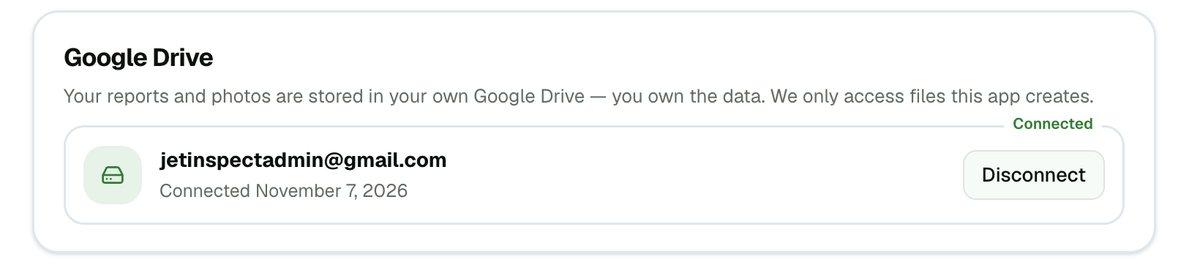
- 3The card shows Connected, with your Google address and the date.
What JetInspect puts in your Drive
JetInspect creates one folder called Inspection Reports in your Drive. Inside it, each report gets its own folder, named for the inspection date and the property address, for example 2026-08-04 — 123 Main St. If a report has no date yet, the folder is named Report # and the report number.
Each report folder holds the report itself and every photo and video you captured for it. The phone and the web write to the same folders, so a report you start on the phone and finish at your desk stays in one place.
On the phone, photos and videos upload in the background whenever you have a connection, so you can keep working offline. Open Settings > Google Drive to see how many are still waiting. Back up now sends them right away.
If the connection lapses
Google can end the connection, for example if you remove JetInspect's access in your Google account. Your reports are not lost. They stay in your Drive, and what you captured on the phone stays on the phone. Saving and publishing stop working until you reconnect.
- 1When a save or publish needs Drive, a window titled Reconnect Google Drive opens. Click Reconnect and allow access. You carry on where you were. Not now closes it.
- 2Or open Settings > Your account. The card says Reconnect needed and Your reports are safe — we just can't reach them. Click Reconnect.
Two other messages point to Drive. On the web, This report has no Drive folder yet. appears when a publish finds no Drive folder for the report. If you started the report on the phone, open it there so it can finish backing up, then try again. Your Google Drive is full means your Google account is out of space. Free up space or add storage; the phone then sends what is waiting when you tap Back up now.
Changing files in Drive
Leave the folders under Inspection Reports where they are. JetInspect finds each report by its folder and file, so deleting or moving them in Drive can break the report. If the file is gone, the web says The report file was not found in your Google Drive (was it deleted?).
Disconnecting is safe for your files: Disconnect on the web card leaves everything in your Drive, but saving and publishing stop until you connect again.
If you work for an inspection company
Your reports are saved to your company's Google Drive, so there is nothing for you to connect. On the web the card reads Set by your company and shows the company's Drive. On the phone the Google Drive row is not shown. If it needs reconnecting, ask the company's owner to do it.
Next: publish, preview and send your report.