
Copying a report
Start a new report from an old one and keep your observations, without the client's details or photos.
Copy a report
- 1Open Reports and find the report you want to reuse. Look under Drafts, Published or All inspections.
- 2On its row, click Copy as new report.
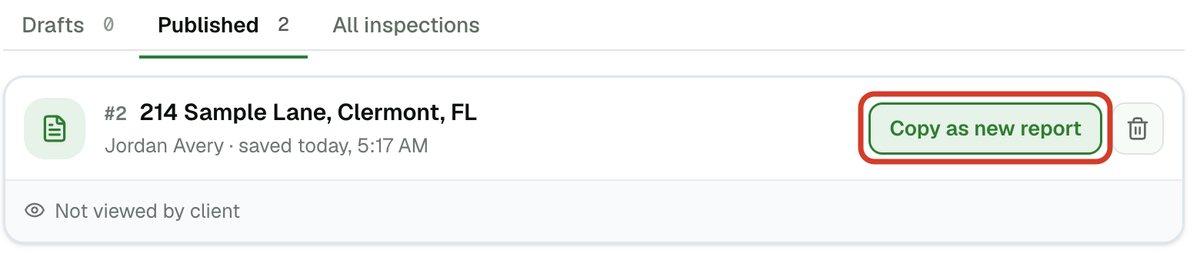
- 3Wait a moment. The new report opens as a draft with its own report number.
- 4Add the client and property details, then go through each section and change what does not fit this house.
What is copied
Copied: your observations, with their wording, severity and the choices you made. Each is a fresh observation, so editing the copy never changes the original. Also copied: each section's description, your answers to its questions, the optional sections you switched on, and the equipment you listed with its type and similar answers. Items you marked Not inspected or Not present stay that way.
Not copied: client and property details, the summary, all photos and video, the appliance list, and publishing status. Items you marked Inspected go back to their default. A serial number, brand, model and year are not copied either, because they belong to the old property's equipment.
On the phone
The phone cannot copy a report. To reuse a report's sections there, use Add a report as a template on the new-inspection list. That keeps the structure only. Observations, photos, form answers and client details do not carry over.