
Adding an office helper
Invite a spouse or scheduler to handle scheduling and paperwork on the web. Office staff cost nothing extra.
Invite your helper
- 1Click Staff in the left menu, then + Add someone.
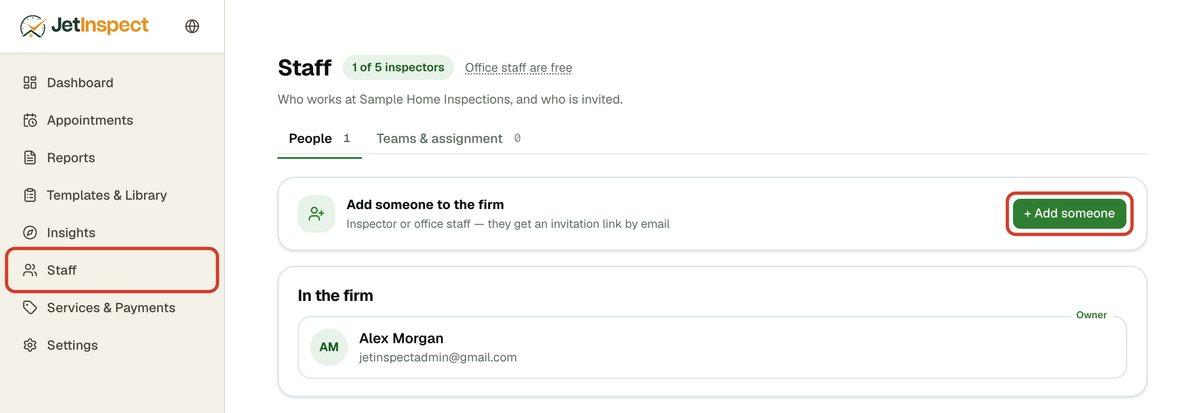
- 2Choose Office staff. The note under it says Doesn’t cost extra.
- 3Enter their Name and Email. Use the email address of the Google account they will sign in with.
- 4Click Send the code. They get an email with an invitation link.
Your subscription must be active to add your first helper. If you are on the one-person plan, you can add one office person. Adding more people means raising your plan; see Your subscription and free trial.
What it costs
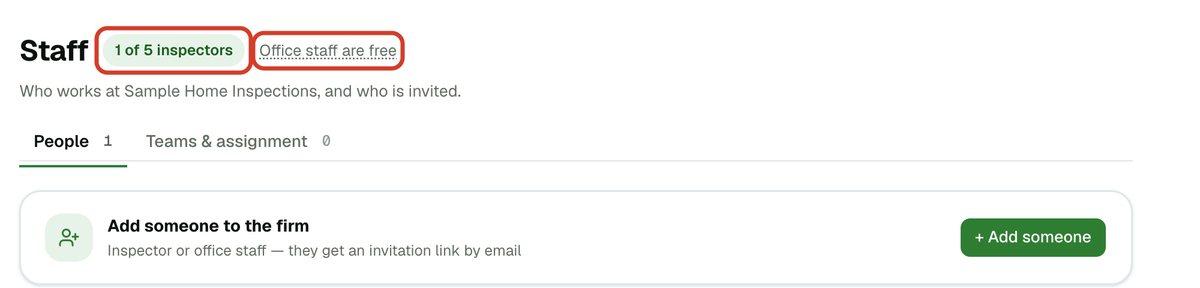
Nothing. The pill beside Staff counts inspectors only, and office staff never add to it. Click Office staff are free to see the explanation.
- 1Look at the count beside the page title.
How they join and sign in
The email opens a page that says you invited them. They click through, sign in with Google and accept. There is no code to type and no app to install. The invitation link works for 7 days.
After that they sign in to the web editor with the same Google account. The Staff page shows the invitation under Invited until they accept; once they do, they appear under In the firm tagged Office staff.
If the email never arrives, click Copy invitation link on their row and send it yourself. If a link runs out, click Withdraw and send a new invitation.
What your helper can do
Office staff work on your company's behalf in the web editor. They can:
- Work in Appointments, Reports and Templates & Library, and see your Dashboard.
- Open Services & Payments to manage your services and prices.
- Change your company details in Settings > Your business, such as your logo and contact details. Those saves apply to your company, and the page says so.
- Reassign a job to a different inspector, if you have more than one.
- Ask for a plan change in Settings > Plan. The owner approves it.
Office staff can't:
- Use the phone app. If they sign in there, it tells them Office staff use JetInspect on the web.
- Be named as the inspector on a report. Only you and your inspectors are offered when a report is published.
- Have their own availability. Start times are for people who do inspections.
- Close your account. That stays with you.
To see how reports are published and sent, read Publishing, previewing and sending.
Remove your helper
- 1Open Staff. Find their row under In the firm.
- 2Click Remove.
They lose access right away. They then move to No longer with the firm, where Rehire sends a new invitation. A rehired person must sign in with the same Google account as before. To cancel an invitation they haven't accepted yet, click Withdraw under Invited.
If you hire other inspectors
Adding inspectors, teams and a larger plan is covered in Running a multi-inspector company.