
Adding video clips
Record or add a clip of something that moves, how long it can be, where it is stored and how clients watch it.
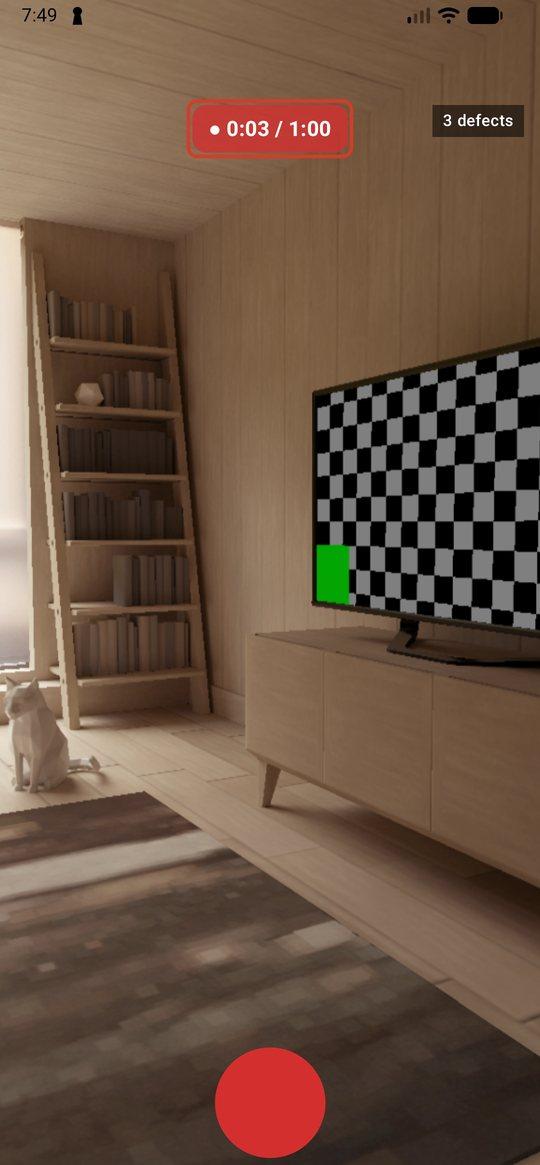
Record a clip on the phone
Recording is done on the phone. On the web you add a clip that is already saved, as the next section shows.
Add a clip to an observation
- 1Open the report, then the section, then Observations.
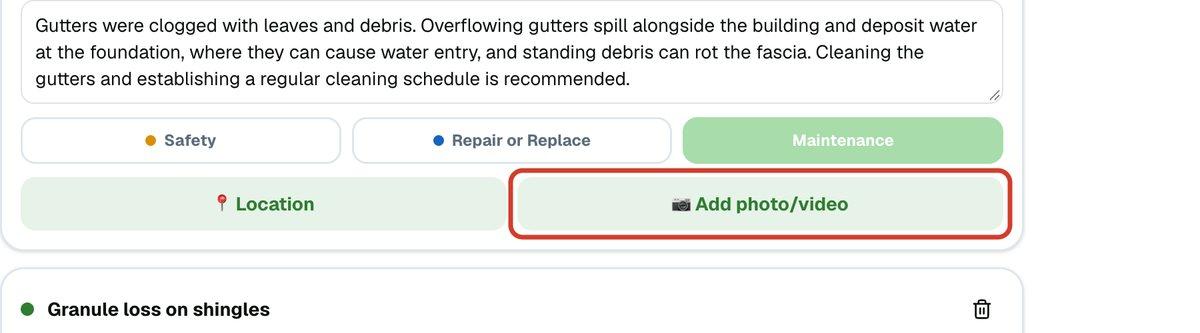
- 2On the observation, click Add photo/video and choose the file. You can pick photos and clips together.
- 3The clip appears with the observation's other media. Click it, then Play in Google Drive to watch it.
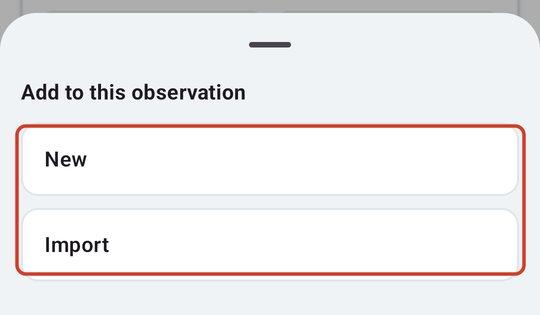
Only observations take video. Section photos and data plates take photos only, so the VIDEO switch does not show when you open the camera from one of those.
Length and size
Every clip is limited to 60 seconds. If a clip is longer, JetInspect says so and does not add it. Trim it to the part that shows the problem.
On the phone, every clip is shrunk automatically while it is added, so you wait a moment on Processing video…. On the web nothing is shrunk, so the file must also be 100 MB or less. A clip over the limit is refused with a message. Record it on the phone and it fits.
Where clips are stored
Clips are saved to your own Google Drive with the rest of the report, and they are much larger than photos. A free Google account has 15 GB, shared with Gmail, so if you shoot video often you may need to add storage to your Google account. See Your reports in Google Drive.
What your client sees
In the online report, a clip shows as a picture with a play mark and its length. Your client clicks it and it plays in Google's video player. A clip you have just added may say it is still processing for a little while.
The PDF cannot play video, so it leaves clips out and says so once, near the front: the inspection includes video clips, and they are in the online version. Send the online report link when a clip matters. See What your client and agent see.