Photographing data plates
Photograph a data plate and JetInspect reads the brand, model, serial and year. You check it and run a recall search.
Photograph a data plate
- 1Open the Appliances section. The standard appliances are already listed.
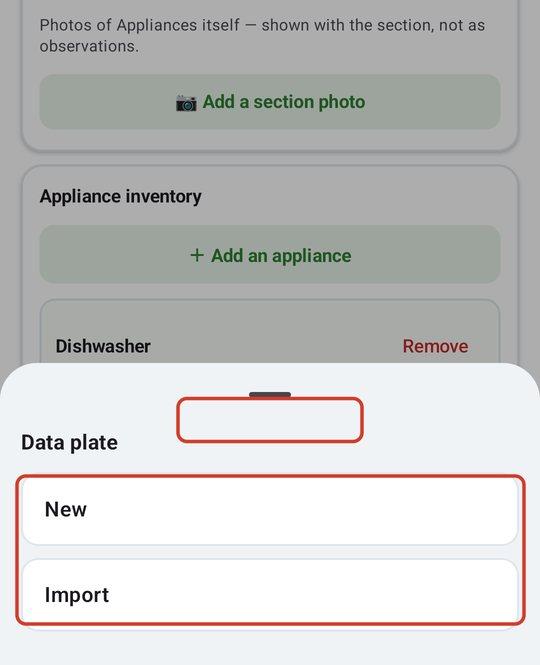
- 2On the appliance, click the Data plate tile and choose the photo.
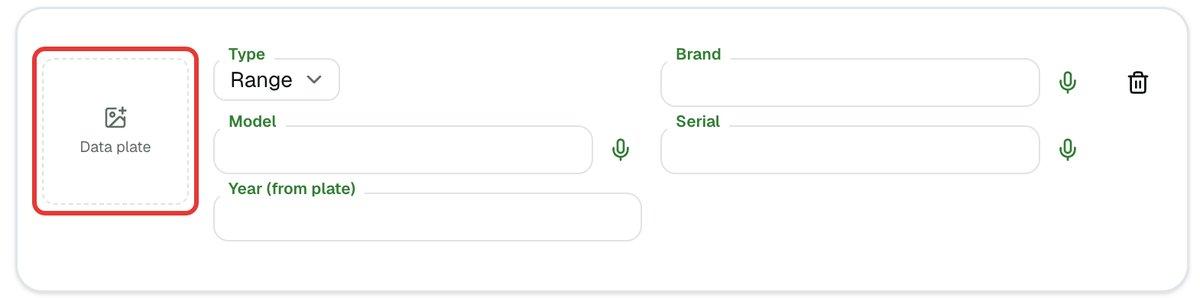
- 3Click the photo to enlarge it, then click Read the plate to fill in the details.
- 4For a water heater, furnace or A/C, use the same Data plate tile on its card in Heating, Cooling or Plumbing.
Check what it read
The card turns amber and says Please verify this information. A line under the photo says the details were filled from the plate photo. When the year is worked out from the serial number, it says so. Check that year before you publish.
- 1Compare Brand, Model and Serial with the plate. Fix any that are wrong by typing, or tap the mic and say it.
- 2Tap Looks good ›. Editing any field also clears the warning. A Verified mark replaces it.
Tap the photo to enlarge it. On the phone, pinch or double-tap to zoom, and Say the serial lets you speak the serial number while you can see it, and it is typed in for you. Retake, Import and Remove photo are there too. Zooming into an area reads that area and fills in blanks, but never changes what you have already typed. On the web, the enlarged photo has Read the plate and the same Say the serial.
Add or remove appliances
- 1In Appliances, change the Type if you need to.
- 2Click Add another (or Add appliance on an empty list) for anything extra.
- 3Use the trash icon to delete one the home does not have.
For more on the sections, see Descriptions, observations and limitations and Capture and Insert: photos and videos on site.
Check for product recalls
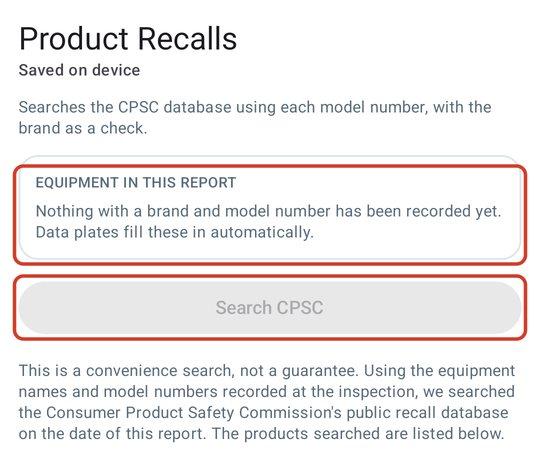
Recalls use the brand and model you recorded, so a plate with both is what makes the check work. Turn on the Product Recalls section and open it. It lists the equipment it can search and says why any unit is left out.
- 1Tap or click Search CPSC. It checks the Consumer Product Safety Commission database.
- 2Tick the recalls that belong in the report. Nothing is ticked for you.