
Importing your comments from a spreadsheet
Bring your own comment list into JetInspect from a spreadsheet or another program's file, and see where it lands.
Get your file ready
- 1Click Templates & Library in the left menu, then the Library setup tab on the far right.

JetInspect reads a spreadsheet (.xlsx or .csv), including a Spectora export as it is, and a HomeGauge template (.ht5). If you make the spreadsheet yourself, put one comment per row with the names in the first row. Only the Comment column (the text the report prints) has to be there. The others are optional: Title, Section, Subsection, Kind, Severity and Keywords. If a row has no title, JetInspect drafts one from the text.
Import your file
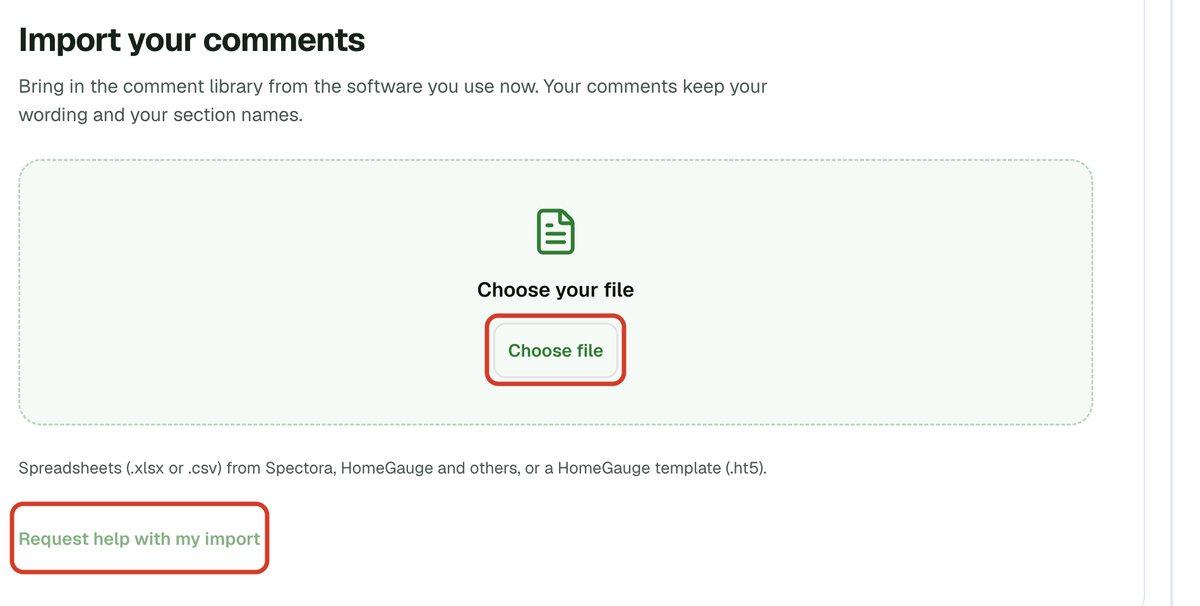
- 1Under Import your comments, click Choose file and pick your file. Nothing is added yet. The file's name and how many comments were found appear.
- 2Click Import. A bar shows JetInspect bringing in your comments and matching your sections to its own. You can leave the page. The import finishes on its own.
- 3If a section name in your file matches nothing, a Choose a match for these sections screen opens. For each row marked Please choose, pick the section it belongs under, then click Continue. If every name matched, you never see this screen.
Your subsections are matched to JetInspect's parts for you, so you are not asked about them.
Stuck, or the file looks wrong? Click Request help with my import. It emails your file to JetInspect support, who will look at it and get back to you. The link is on every screen of the import.
After the import
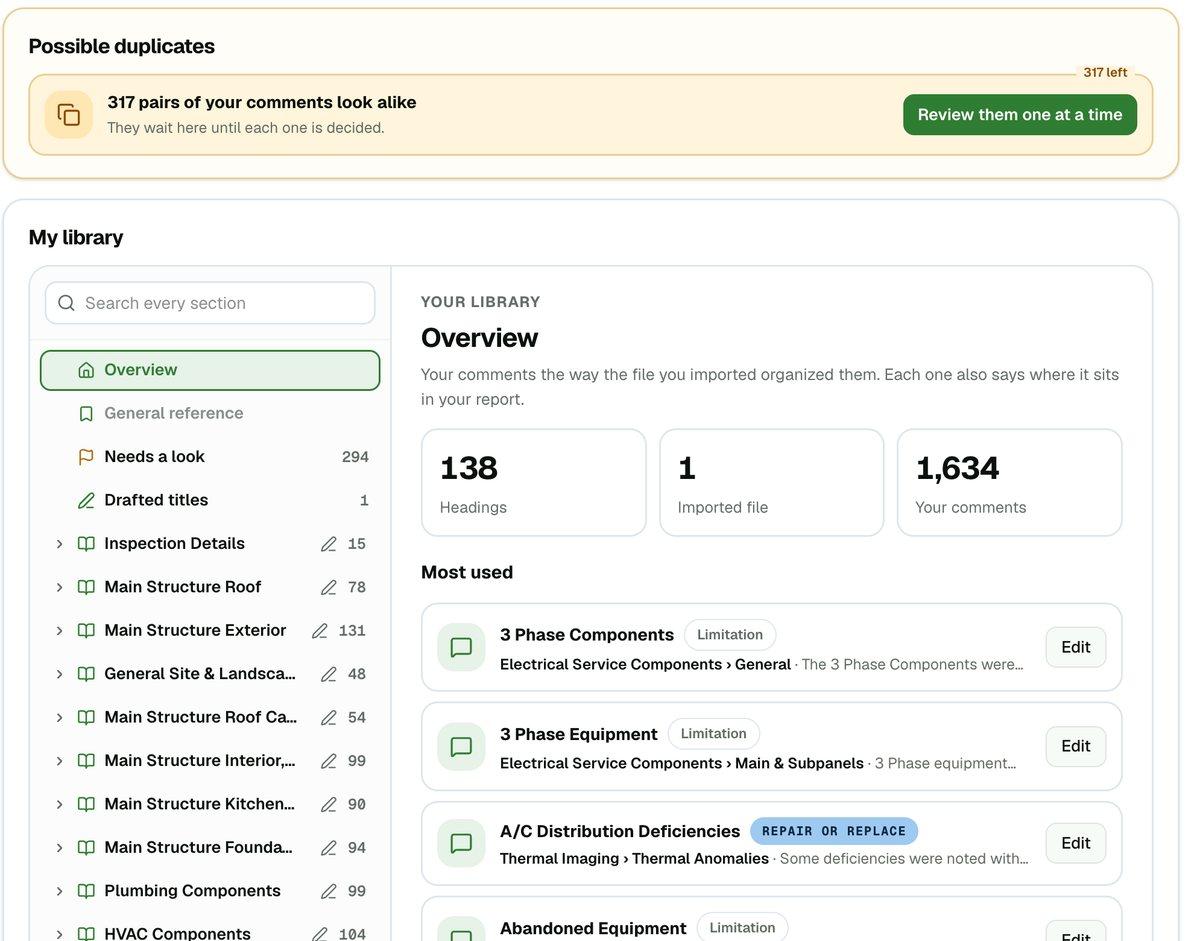
You land in your Comment Library. A green line at the top says how many comments came in, such as 1,634 comments imported. If some of them may repeat comments you already had, it adds how many, with a Review them link that opens the comments to check. Close the line with the X.
- 1Your comments sit under your own section names, the headings your file used. Those names also become the headings printed in your reports, saved for you during the import.
- 2Comment search switches to My library only, so your own comments come first. You can change it back on the Library setup tab under Comment search.
- 3In the list on the left, Needs a look holds comments the import flagged, such as several observations in one comment. Drafted titles holds comments whose title JetInspect wrote. Edit a comment and it leaves the list.
After an import, your library shows only your own headings. A comment you add later appears under Added in JetInspect. To add or change comments yourself, see Saving and editing your own comments.
There is no button that undoes a whole import. To remove a comment, open it in the Comment Library and delete it. To use your comments in a report, see Finding the right comment.
If you work for an inspection company
Importing is for the company owner or an administrator. If you are an inspector on a company account, the import does not appear on your Library setup tab, so ask your administrator to add comments.