
Your inspection agreement
Add your agreement, how clients sign it online, holding the report until it is signed, and seeing who signed.
Add your agreement
- 1Click Settings in the left menu and scroll to Inspection agreement.
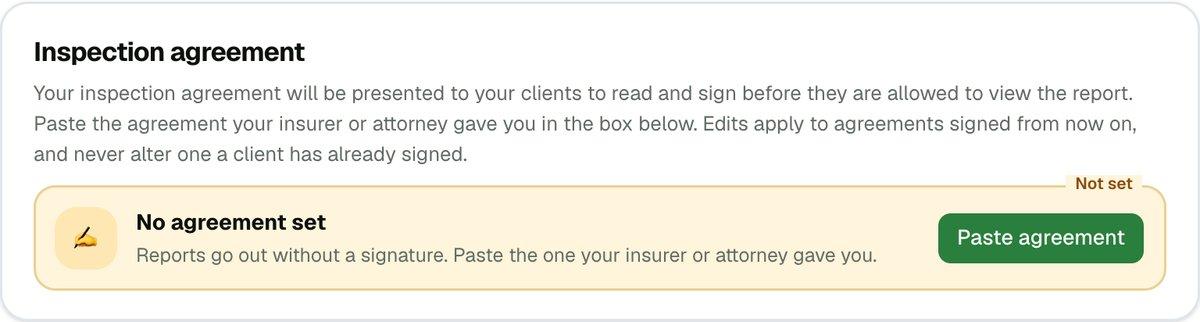
- 2Click Paste agreement (or Edit if one is already saved), paste your text into the box, and click Save agreement.
Clients see the text exactly as you typed it, so use plain text. If you change it later, agreements that were already signed keep the wording they were signed under. To remove your agreement, clear the box and save.
How your client signs
Your client signs on their own appointment and report page. It's the same link every time, so there is nothing extra for you to send.
- 1When you schedule an inspection and the client has an email address, the scheduling confirmation says their appointment page has the agreement to sign. They can sign before the inspection.
- 2If they haven't signed by the time you publish, the email with their report tells them they'll be asked to sign first, and the report opens right after.
- 3The client reads the agreement, types their full name, ticks the box saying it is their electronic signature, and signs. The button reads Agree and sign before the report is published and Agree and open the report after.
If the name they type doesn't match the client on the report, they can retype it, confirm that it is them under a different name, or say they aren't that person. You are told about any of these.
You don't need to type your prices into the agreement. When it's for a scheduled appointment, JetInspect adds an Inspection charges list at the end, just above where your client signs: each service with its price, then the total. It's part of what your client signs and of the signed copy saved to your Google Drive.
Hold the report until it is signed
Each report has its own switch. It is on by default when you have an agreement, and the client can't open the report until they sign.
- 1Open the report and click Sharing & access above the sections list.
- 2In the Agreement gate card, turn Require agreement off to let this report open without a signature, or on to require one.

You can't turn the switch on until you've saved an agreement. Once the client has signed, the switch is locked.
See who signed
Open Sharing & access on the report. The Agreement gate card shows one of these:
- 1Waiting for the client to accept. They haven't signed yet. If someone tried and their name didn't match, the card lists what they typed.
- 2Signed by the client's name and the date. It also says whether the name was checked against the client on the report.
Each signature is saved as a PDF in your Google Drive, with the wording the client saw. If the PDF didn't reach Drive, the card shows Save it now.
If the client signed another way, or needs to sign again
- 1Signed on paper or by phone? In the Agreement gate card, click Record it myself, type the person's full name under Who signed?, and click Record signature. It's saved as your attestation, not as a client signature, and the report opens for the client.
- 2Wrong person signed? Click Ask for a new signature. The signature is cleared and the client can sign again.
If you work for an inspection company
The agreement comes from your company's owner, so there is no agreement card in your Settings. It shows Set by your company's name instead. You can still use Sharing & access on your own reports.