Descriptions, observations and limitations
What goes in each of a section's three tabs, and how to fill them on the phone and the web.
Note
Every section of a report has the same three tabs: Description, Observations and Limitations. The number beside Observations counts what you have written in the section. For the layout around them, see Finding your way around the report editor.
Describe the section
The Description tab holds opening text for the section, the section's questions (like Covering material) and photos of the section itself.
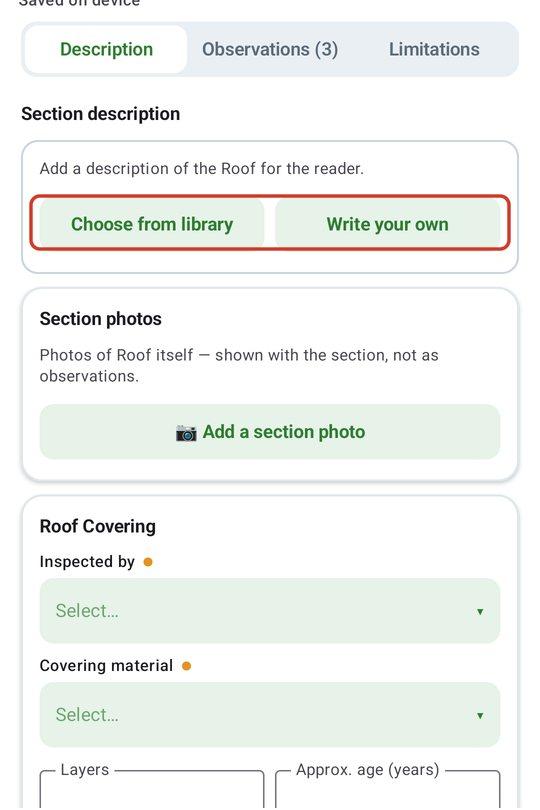
- 1Under Section description, click Choose from library and tap as many descriptions as apply. Tap one again to take it out. Or type in the box, Describe the section in your own words…. Do both if you like.
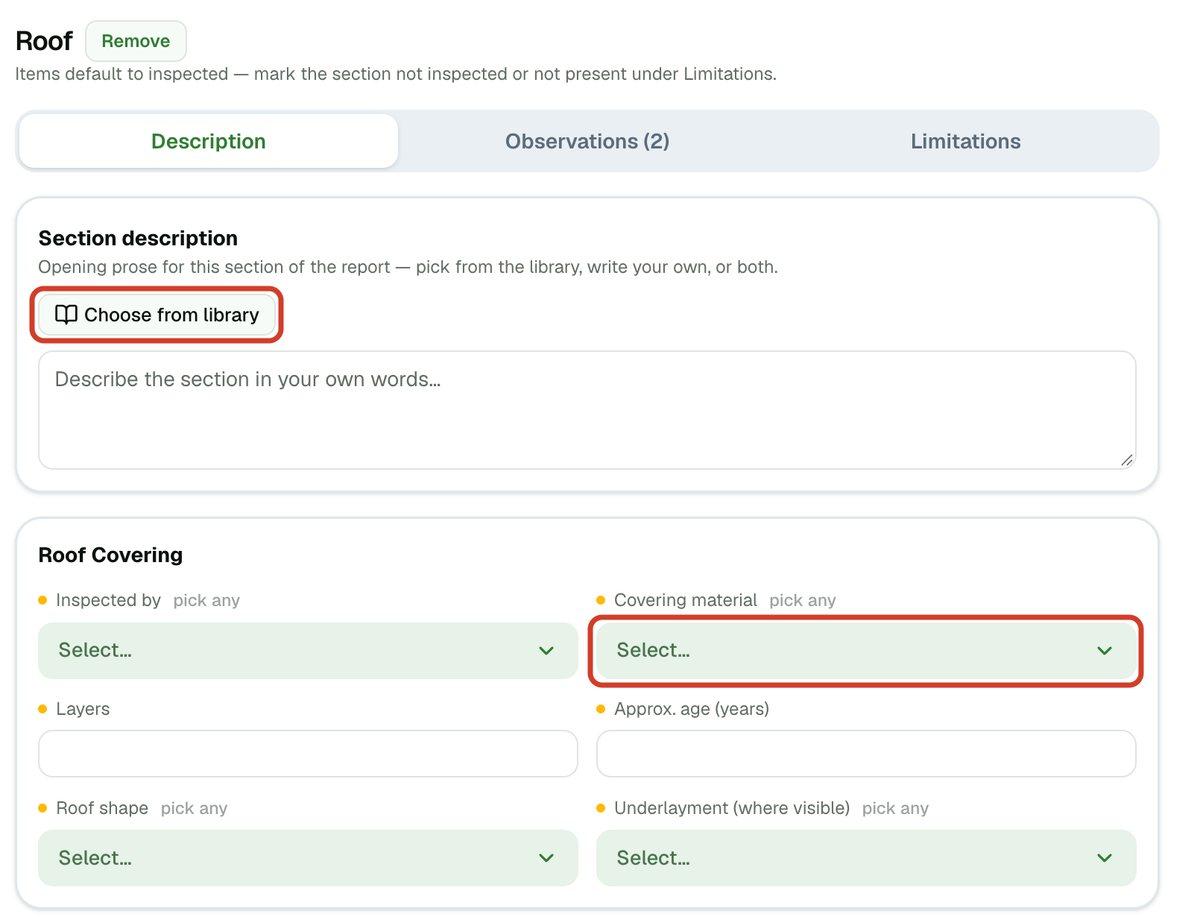
- 2Answer the section's questions below it. Open a list that says Select… and pick. If your answer is not there, choose + Add another and type it. JetInspect remembers it for next time.
- 3For equipment that can come in twos, like a furnace or water heater, click Add another for a second unit. Each unit gets its own answers and its own data plate photo.
- 4Under Section photos, click Add section photos for a view of the whole section, such as the roof. They show with the section, not as observations.
Tip
Equipment data plates have their own guide on photographing and reading them. Use Rapid Voice/Text Entry or Using the Guided flow to fill sections faster.
Add and edit observations
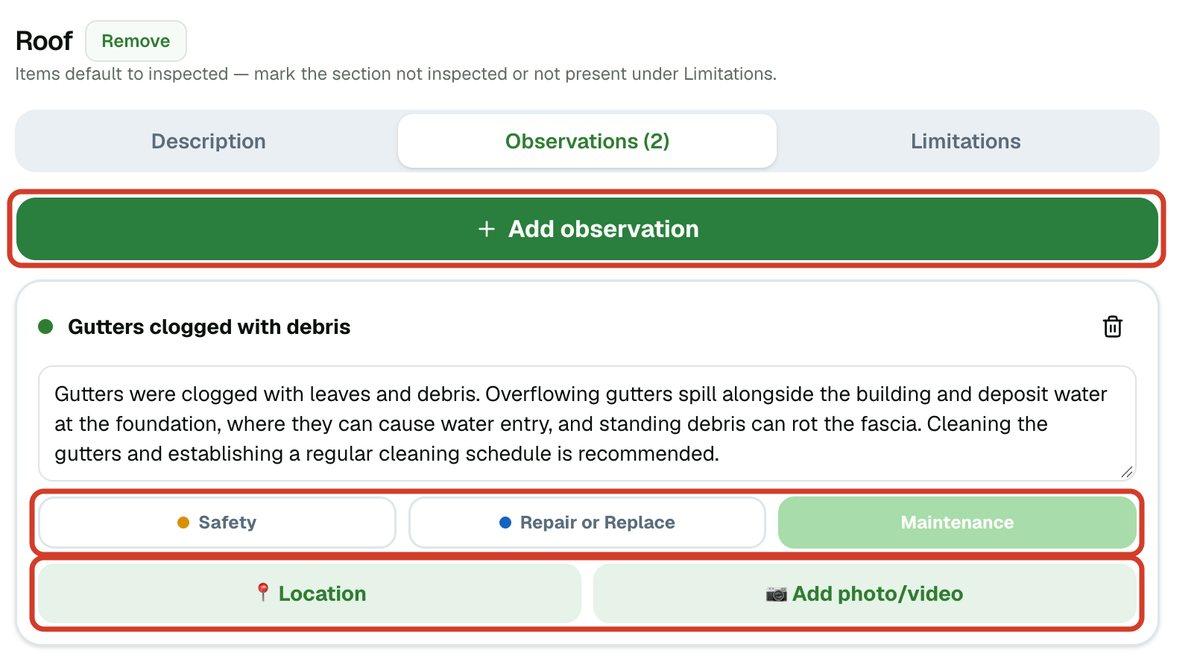
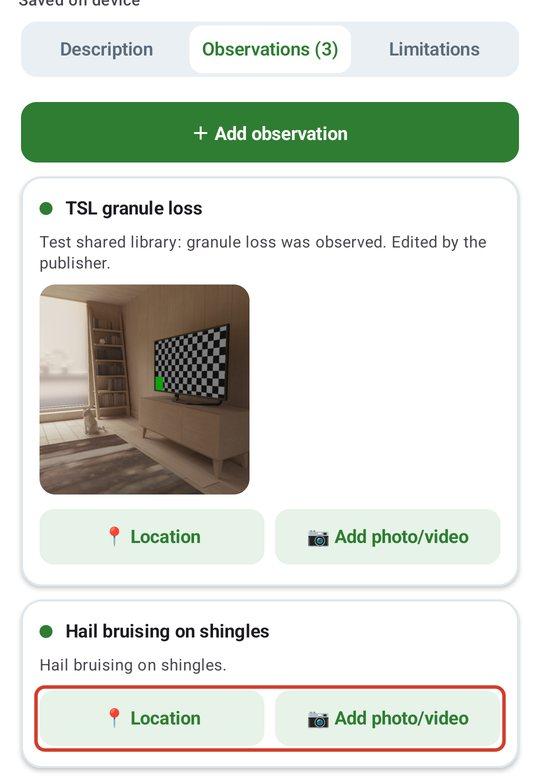
- 1On Observations, click Add observation. Tick the comments you want and click the button at the bottom, Add N observations. To search the comment library, see Finding the right comment. Write a blank observation instead starts from nothing.
- 2In the picker, Reference (when the section has one) and General reference (when your library has one) open your own notes beside the comments. See Keeping reference notes in your library.
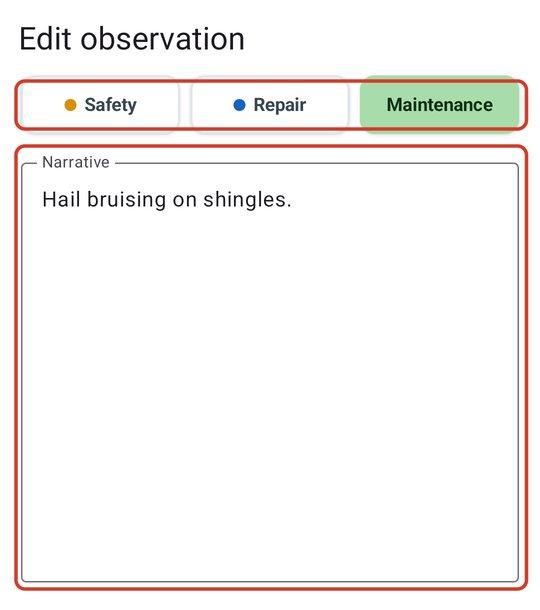
- 3Edit the wording right in the box.
- 4Pick a severity: Safety, Repair or Replace or Maintenance. The filled button is the one chosen. If you imported your own categories, they show as extra buttons.
- 5Click Location to say where the problem is, and Add photo/video to attach photos or a short clip. The trash icon deletes the observation.
Record what you could not inspect
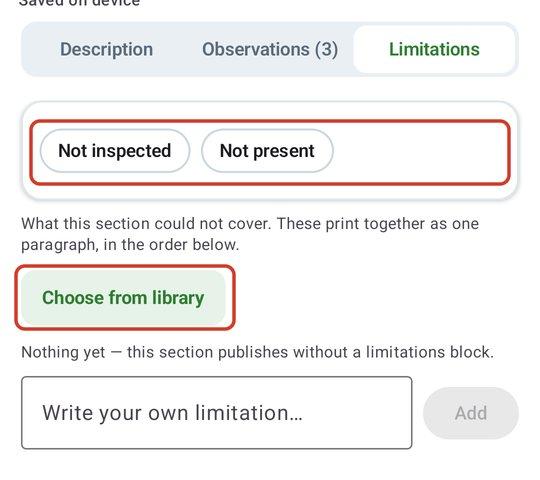
- 1On Limitations, tick Not inspected or Not present if the whole section applies. Tick it again to clear it.
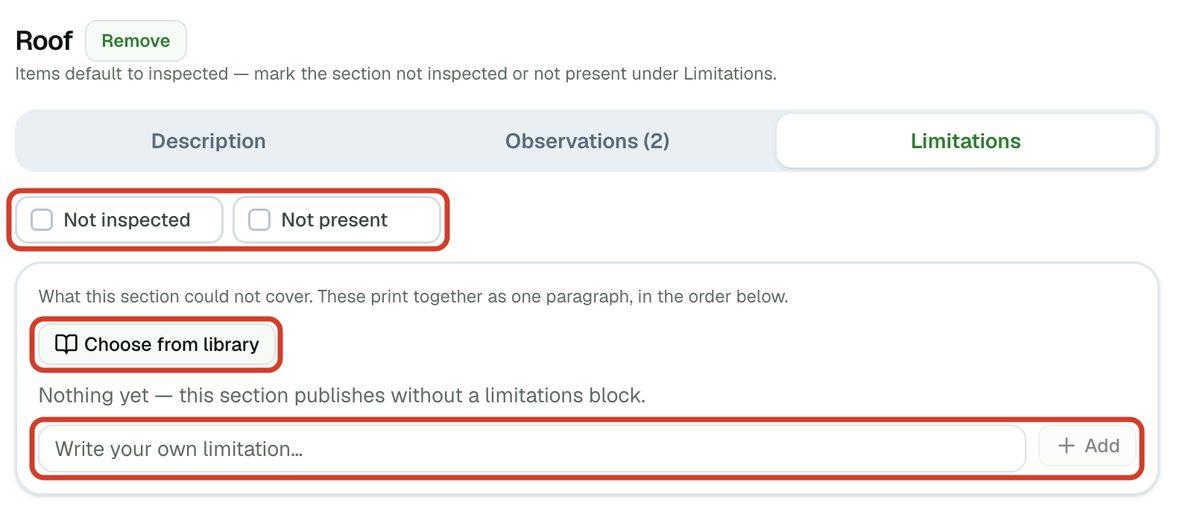
- 2Click Choose from library and tap the limitations that apply, or type your own under Write your own limitation… and click Add. They print together as one paragraph, in the order listed. Edit any line in place, or remove it with the X.