
Rapid Photo/Video Review
Go through a batch of photos and clips one at a time and turn each into an observation.
Note
Rapid Photo/Video Review is for the photos and clips you shot first and sort out afterward. You go through them one at a time. For each one, say or type what it shows, and it goes into the report as an observation. Works on the web and on the phone.
Add your photos and videos
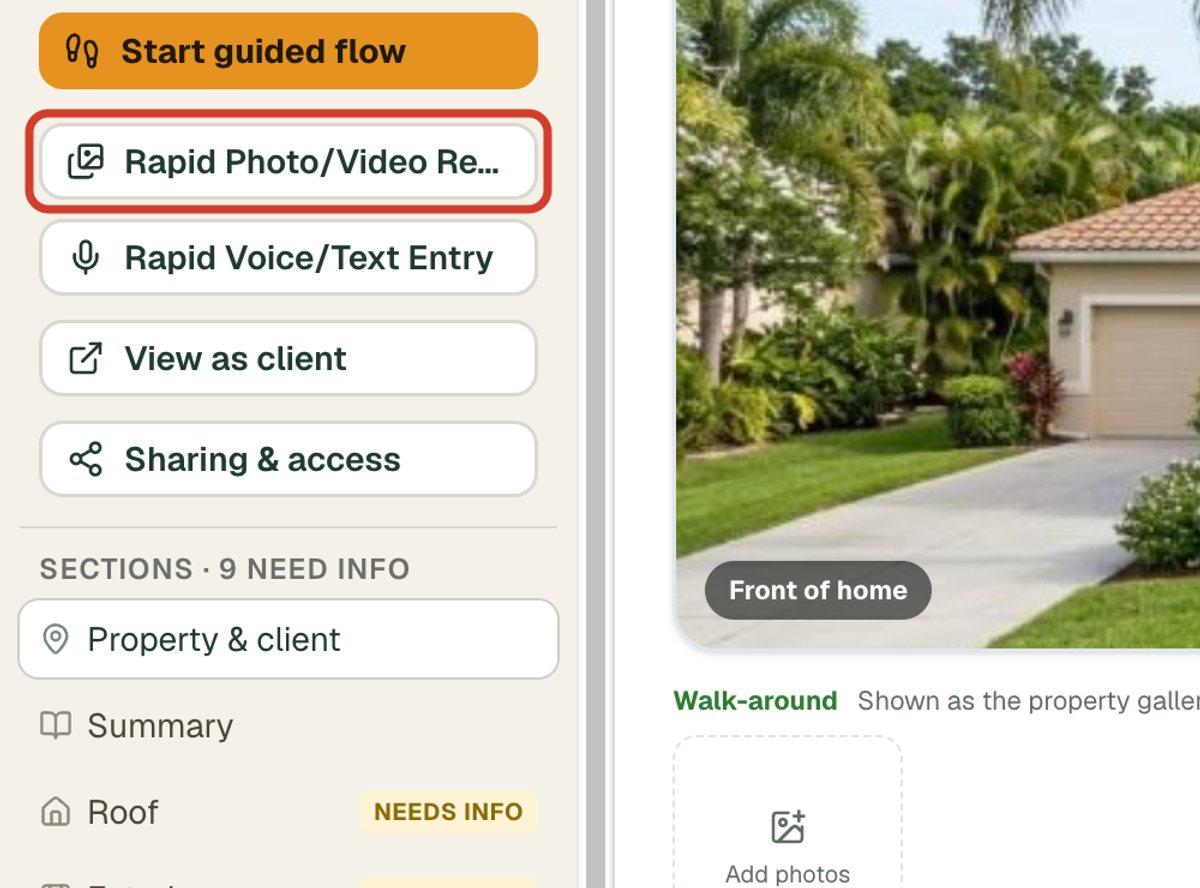
- 1In the left column of the report, click Rapid Photo/Video Review. A number beside it counts the photos and clips still waiting.
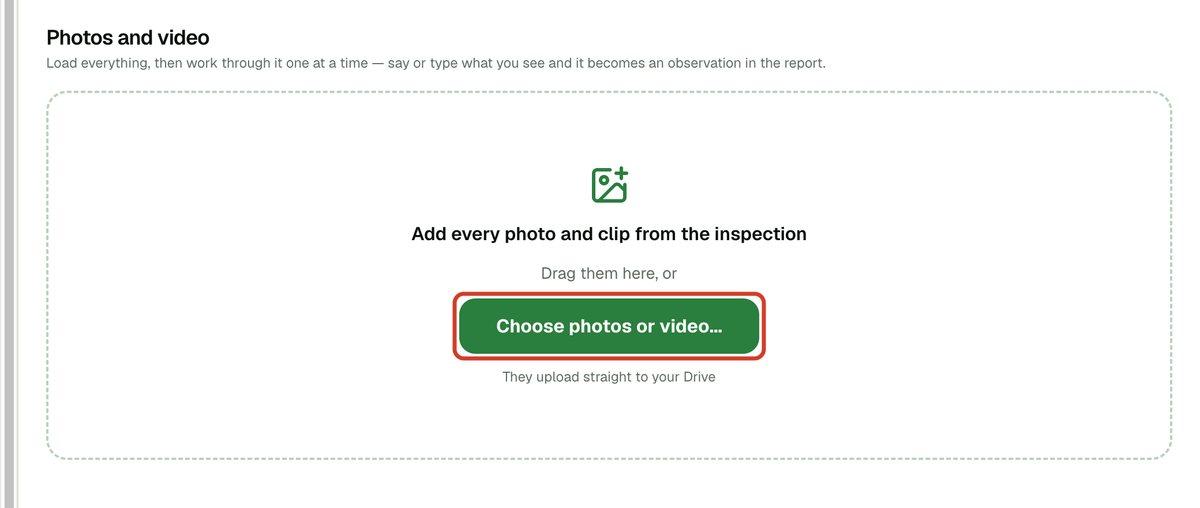
- 2Drag your photos and clips onto the page, or click Choose photos or video… and select them. They upload to your Google Drive.
- 3To add more later, click the + tile under the pictures.
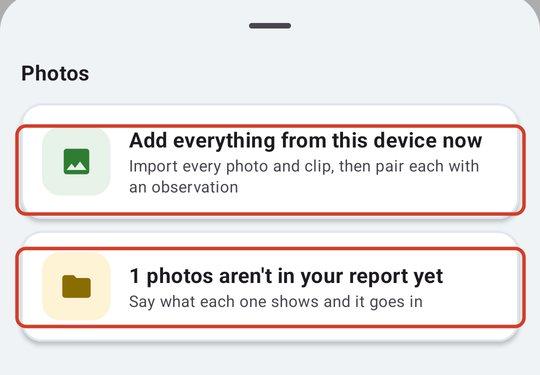
Turn each photo into an observation
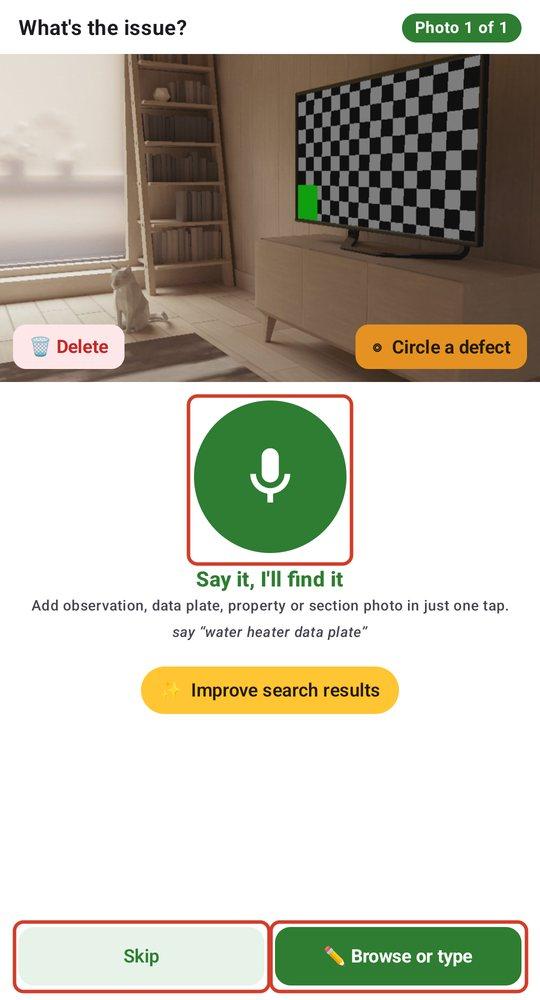
- 1The counter at the top reads Photo 1 of 12 (Video on a clip). Click a photo to zoom in. A clip shows its length and a Watch in Google Drive link.
- 2Click the microphone and say what you see, or type it in the box. The comments that match appear under it. Include the location if you like, such as "missing shingles front slope".
- 3Click a comment. JetInspect adds the observation and the photo to the right section, then shows the next photo. Press Enter to take the top match.
- 4If nothing fits, click Save as my own observation to keep your words as a new comment, or Browse or type to search your whole library.
Tip
Picking the same comment again adds the photo to that observation instead of repeating it.
Photos that aren't a defect
Not every photo is a problem. Say what it is and the app offers the right place:
- 1"Front of the home" or "left side" gives you a property photo. The front becomes the report's cover photo.
- 2A section name, such as "roof photo", adds it to that section's photos.
- 3"Water heater data plate" adds it as a data plate. See Capture and Insert: photos and videos on site.
Photos made with Guided flow use this same screen. See Using the Guided flow.
Skip, circle or delete
- 1Click Skip for now to leave a photo for later. It stays in the queue.
- 2Click ◎ Circle a defect on a photo to draw a ring around the problem. Clips can't be circled.
- 3Click 🗑 Delete to remove it. This asks you to confirm, and it can't be undone: the copy in your Google Drive goes to the trash.
Skipped photos wait in the count on the button. See Adding video clips for clips and Circling a defect on a photo for circling.
Fix a mistake
- 1Open the observation in its section and click its photo.
- 2Click Move photo…, then pick the section and the observation. Click Move photo here.
- 3To start fresh, choose Make it a new observation, or Take it out — decide later (Photos pane) to send it back to the review queue.
Note
The web has no Undo banner. Move the photo as above instead.