
Running a multi-inspector company
Add inspectors and office staff, choose who gets each job, set hours and time off, and see everyone's work.
Add your first person
- 1Click Staff in the left menu. The number beside the title, such as 1 of 5 inspectors, is how many places you have used, you included. Office staff never count.
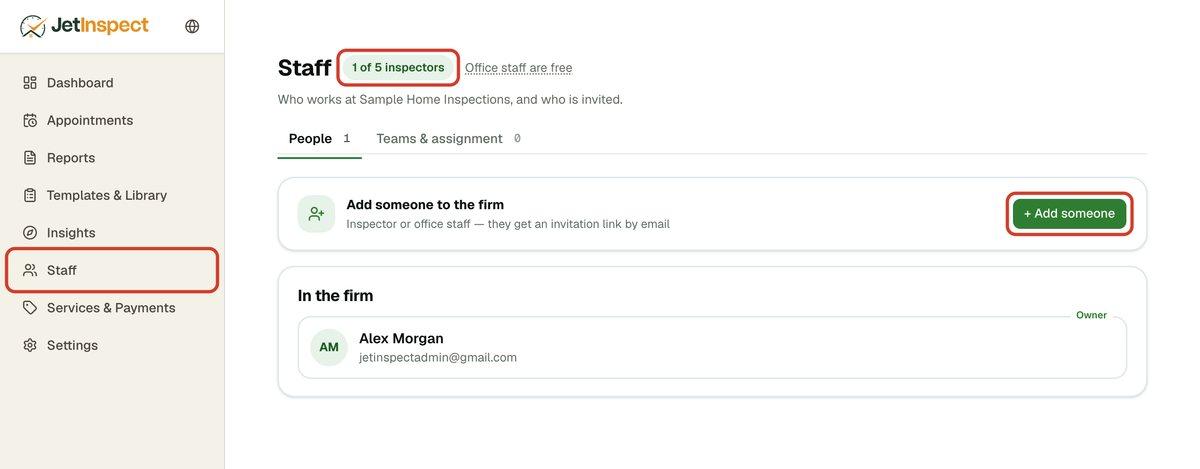
- 2Click + Add someone and invite them (see the next section). Your account becomes a company when you add the first person.
On the basic plan you can add one office person. To add inspectors, raise your plan first: go to Settings > Plan, use Additional inspectors to choose how many you want, then click Subscribe (or Change subscription). It finishes in the JetInspect app on the owner's phone, and nothing is charged until then. If a plan is out of places, the Inspector choice says to raise your plan.
Invite an inspector or office staff
- 1On Staff, click + Add someone.
- 2Choose Inspector (does inspections, uses a place on your plan) or Office staff (scheduling and admin, no charge). A line under the choices shows whether it uses one of your open places.
- 3Fill in Name and Email, then click Send the code.
They get an email with an invitation link, and a signed-in Google account is how they join. Until they accept, they show under Invited. A link works for 7 days. If the email never arrives, click Copy invitation link and send it yourself. An invitation holds a place from the moment you send it. Click Withdraw and the place comes back. An expired one says so: withdraw it and send a new one.
What you set for everyone
Your company's details come from your account, and your inspectors use them. They fill in only their own name and license. In their Settings they see Set by your company's name.
- Settings > Your business: company information, logo and brand color. See Setting up your business.
- Services & Payments: your prices. Inspectors can't change them. See Setting your services and prices.
- The inspection agreement and the standards of practice. See Your inspection agreement.
- Templates & Library: your company's owner chooses the report design.
- Your website. It is created and published from the owner's account. See Editing your website.
Choose who gets each job
- 1On Staff, open the Teams & assignment tab. It appears once your company has more than one inspector place.
- 2Under Auto assign, choose Balance jobs or Manual pick.
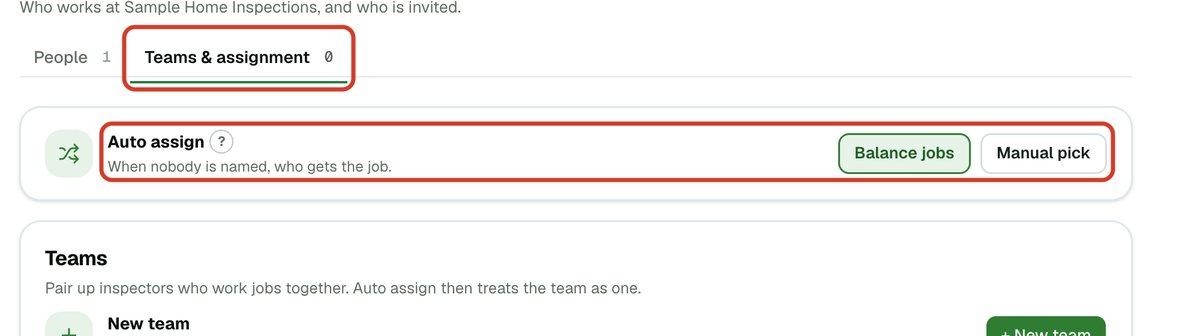
Balance jobs gives a new job to the inspector with the fewest jobs that day, among those who are free: inside their hours, not on time off and with no clash. Manual pick leaves the job for you to assign. This applies to jobs you enter, jobs clients schedule online and jobs scheduled from the phone. To keep two inspectors who work together as one, use New team, name it and pick its members.
- 1To pick by hand, open Appointments and find the job. The Inspectors row shows who is on it.
- 2Click Add an inspector (or Add if someone is already on it) and choose a name. The list shows who is free at that time first, then those under Not available with the reason.
- 3For someone who is not available, click Add anyway. Use the little x beside a name to take someone off.
A job with nobody on it is listed on your Dashboard under Nobody's on these yet, where you can assign it the same way. See Scheduling an inspection or sending a quote.
Choose the inspector on a report
A report prints one inspector's name and license. When your company publishes, the Inspector on the report choice sits above Publish on the web and appears as a box when you publish from the phone. The person publishing picks from the owner and the inspectors. Office staff are not listed. It is the choice you will want when the person finishing a report is not the one who inspected.
Set each inspector's hours and time off
- 1Click Services & Payments > Availability.
- 2Use Showing to choose whose week to edit. Company hours · everyone's default is the first choice, and its Apply to all button copies those times to every inspector once.
- 3Pick an inspector to change their own week. A person who has moved off the company hours shows differs from company hours with a Reset to company hours button.
Inspectors set their own time off. When it lands on a day that already has an inspection, you are told. Inspectors can look at a colleague's week but only they or the office can change it. Details of the week grid and time off are in Setting your availability.
See everyone's work
- 1Click Reports > All inspections. As owner you see the whole company's jobs. Search by client, agent, address, email or phone. Each row names its Inspector.
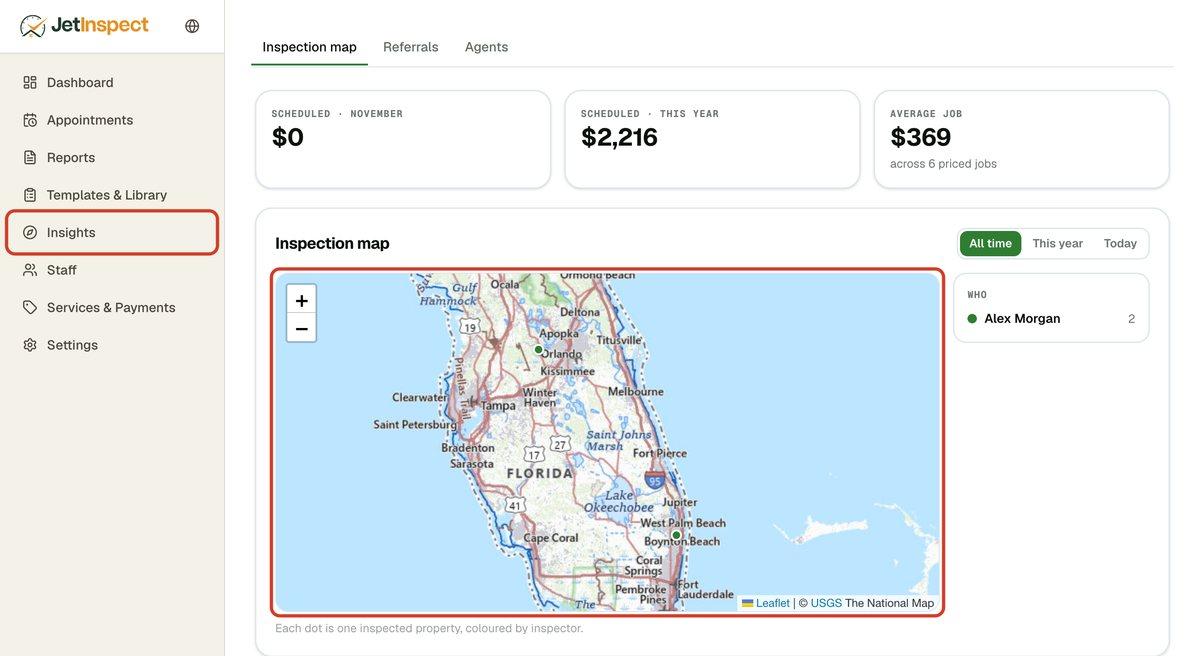
- 2Click Insights. The Inspection map puts one dot on every inspected property, colored by inspector, with a WHO list and the number of jobs for each. Switch between All time, This year and Today.
Remove an inspector
- 1On Staff, find them under In the firm and click Remove. It happens straight away.
Their place is freed and they move to No longer with the firm. Ask them to let their phone finish syncing first, so nothing is left unsent. Changed your mind? Click Rehire beside their name. They must sign in with the same Google account as before. You can't remove the owner.