
Choosing your report design
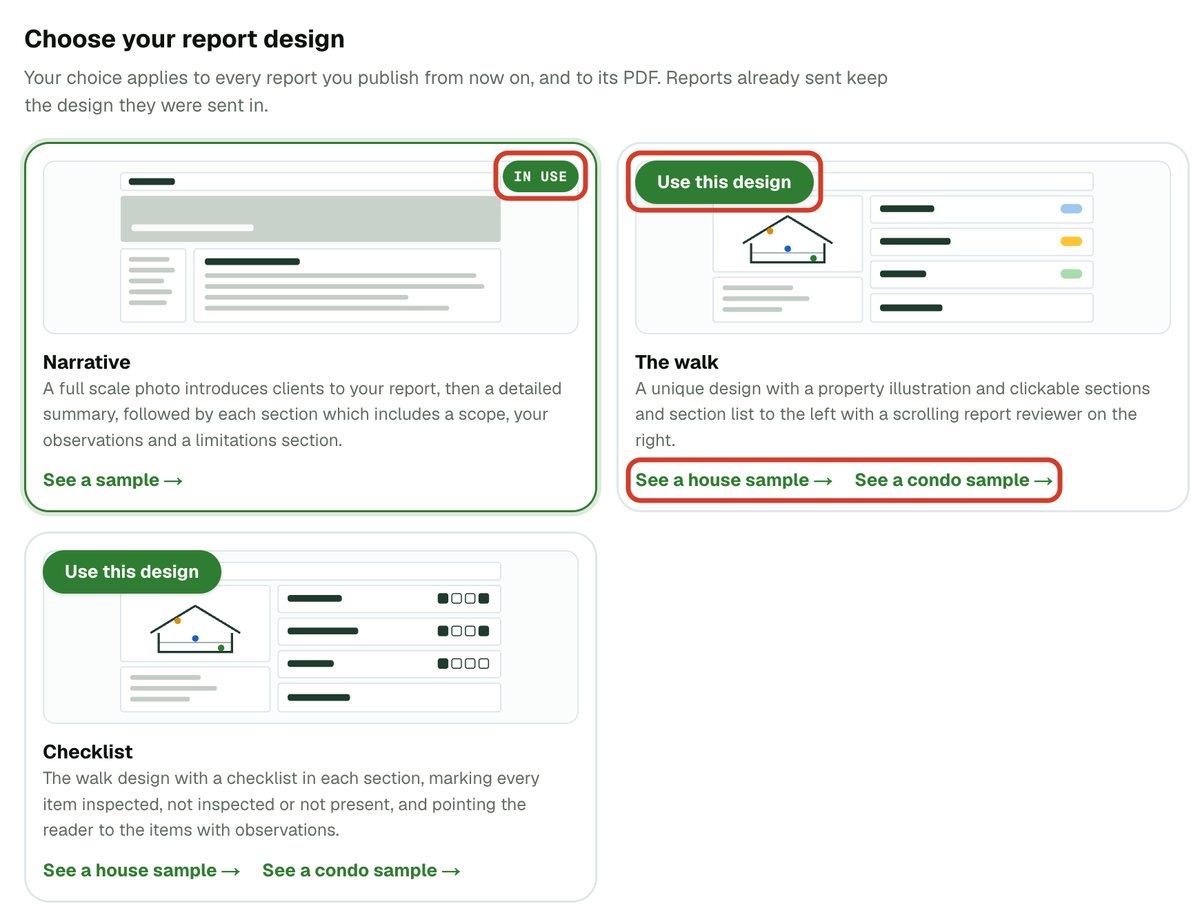
Narrative, The walk or Checklist: look at a sample of each, then pick how clients see your reports.
Open the designs
- 1Click Templates & Library in the left menu. Templates opens first.

- 2Scroll down to Choose your report design. Each design has a card with a picture and a short description.
The three designs
Narrative opens with a full-width photo, then a detailed summary, then each section with its scope, your observations and its limitations.
The walk shows an illustration of the property. Clickable sections and a section list sit on the left, and the report scrolls on the right.
Checklist is The walk with a checklist in each section. It marks every item inspected, not inspected or not present, and points the reader to the items with observations.
Every account starts on Narrative. The card in force shows In use.
Look at a sample first
- 1On a card, click See a sample →. The walk and Checklist draw the property, so each offers See a house sample → and See a condo sample →.
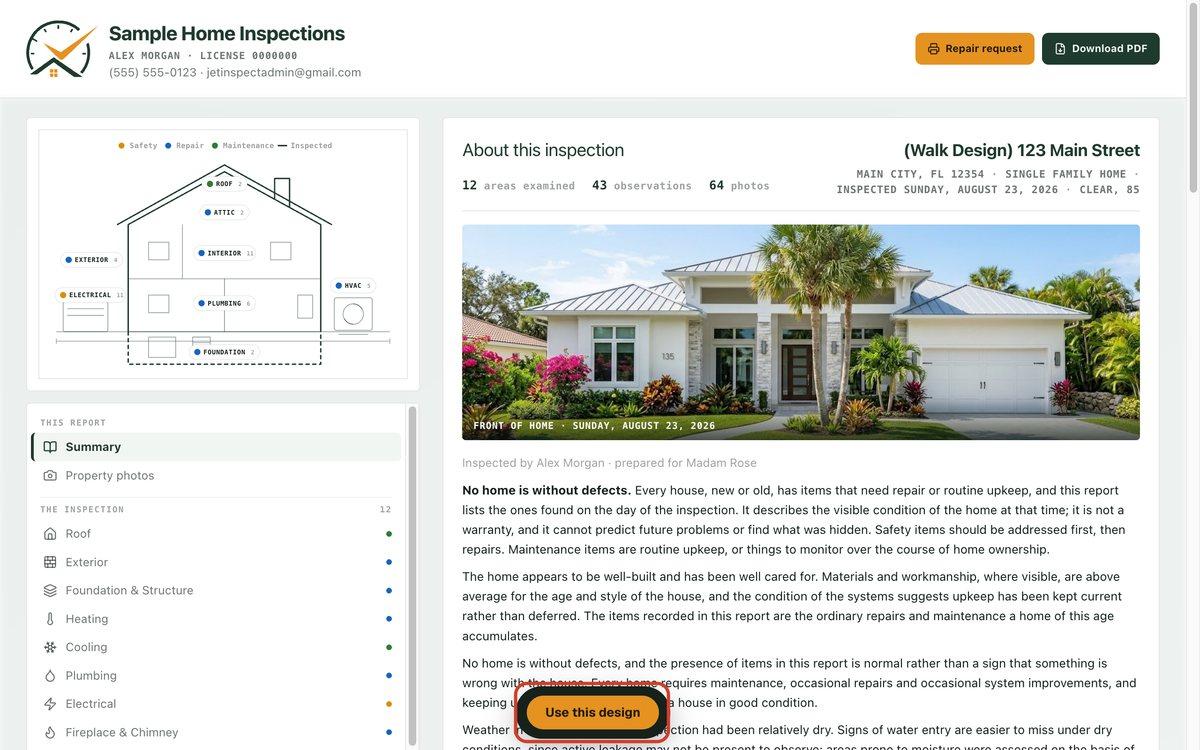
- 2The sample opens in its own window, as a finished report. Click around it the way a client would.
- 3Close the window when you're done. Nothing has changed.
If you have published a sample report of your own, the sample shows it. Until then you see JetInspect's built-in one.
Choose a design
- 1On the card you want, click Use this design. The card then shows In use.
- 2Or open a sample and click Use this design at the bottom of it. It then reads The walk is your report design, with a check mark.
What changes, and what doesn't
Your choice applies to every report you publish from now on, and to its PDF. That includes reports you publish from the phone.
Reports you have already sent keep the design they went out in. Switching never restyles one a client already holds. The exception is a report you publish again: it is published in your current design, so that one report changes.
Your logo and brand color are set separately. To change them, see Setting up your business.
If you work for an inspection company
The company's owner chooses the report design, and every inspector's reports use it. You can look at the samples, but there is no Use this design button. Your company's choice shows as In use.