
Checking the repair cost estimates
See exactly what your client and their agent will see, estimates included, before anyone gets an email.
Note
Publish puts the report online but emails nobody. Your client and their agent are emailed only when you press Send to client, so you can check everything first.
Check the estimates, then send
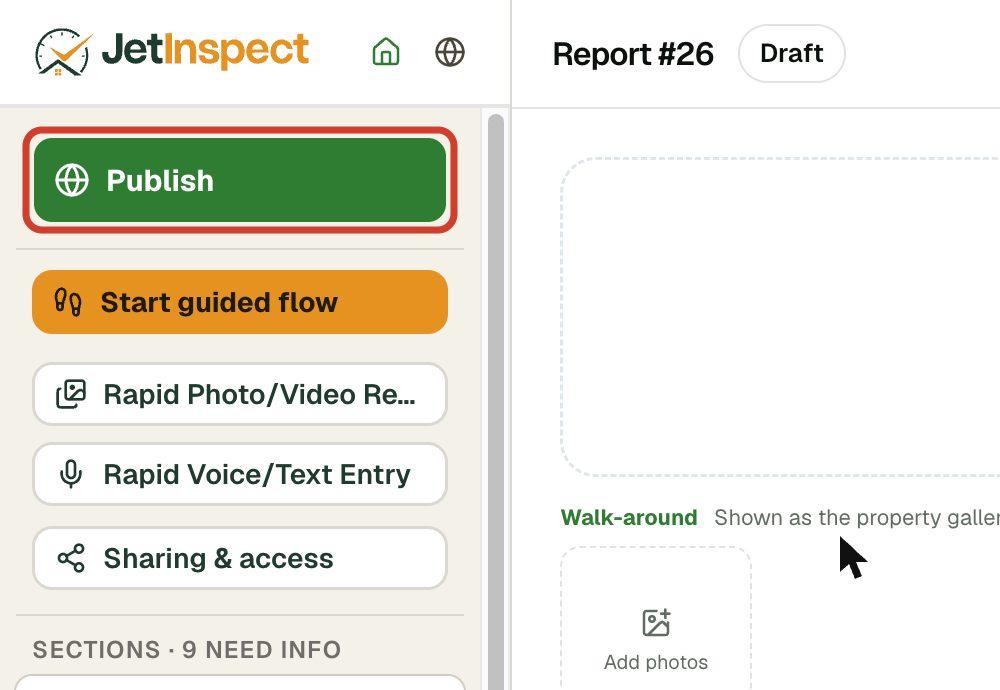
- 1In the report editor, click Publish. You'll see “Report published — not sent to your client yet.”
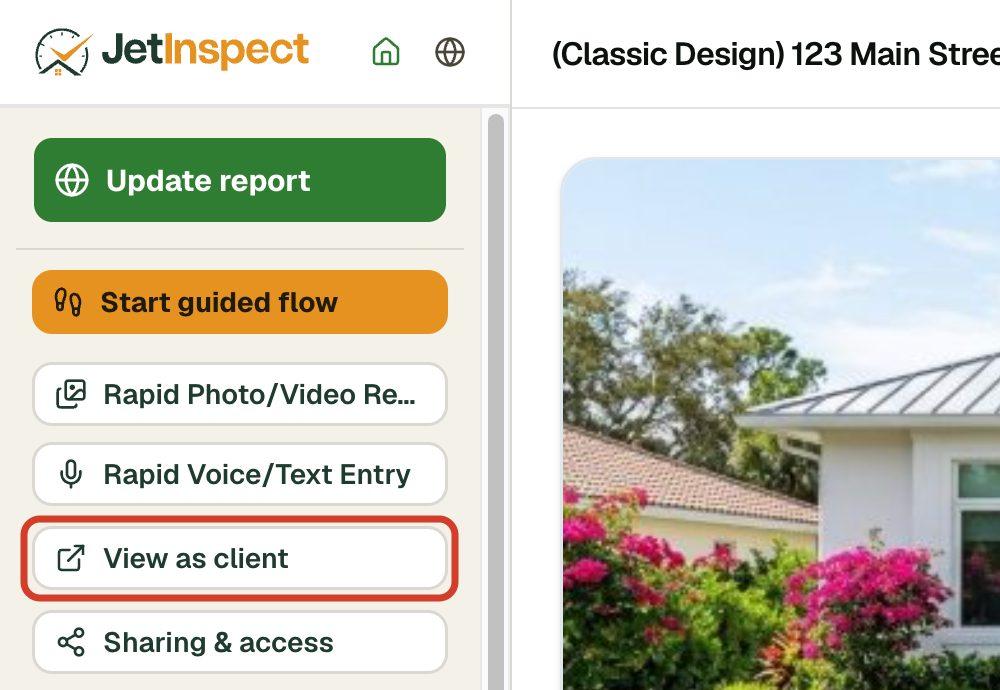
- 2Click View as client. The report opens in a new tab, as your client will see it.
- 3At the top right of the report, click Repair request.

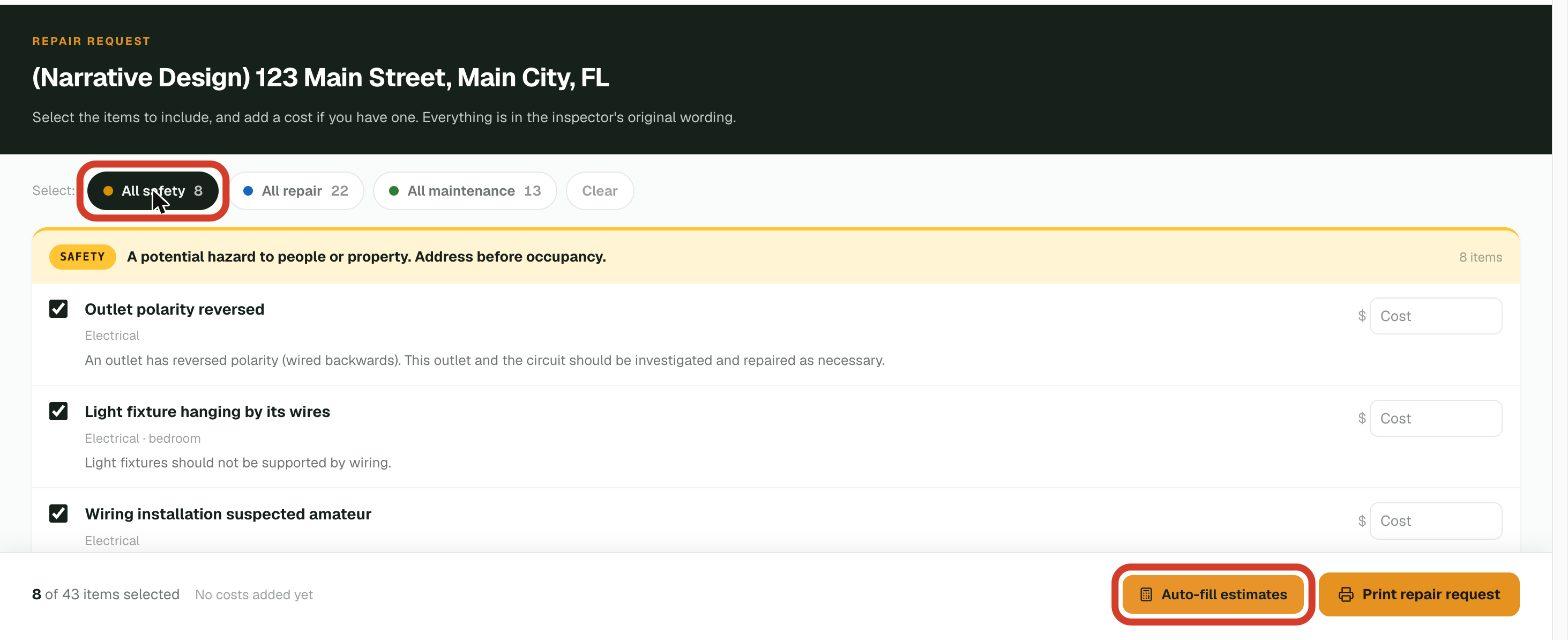
- 4Select the items to check, or click All safety, All repair or All maintenance. Then click Auto-fill estimates.
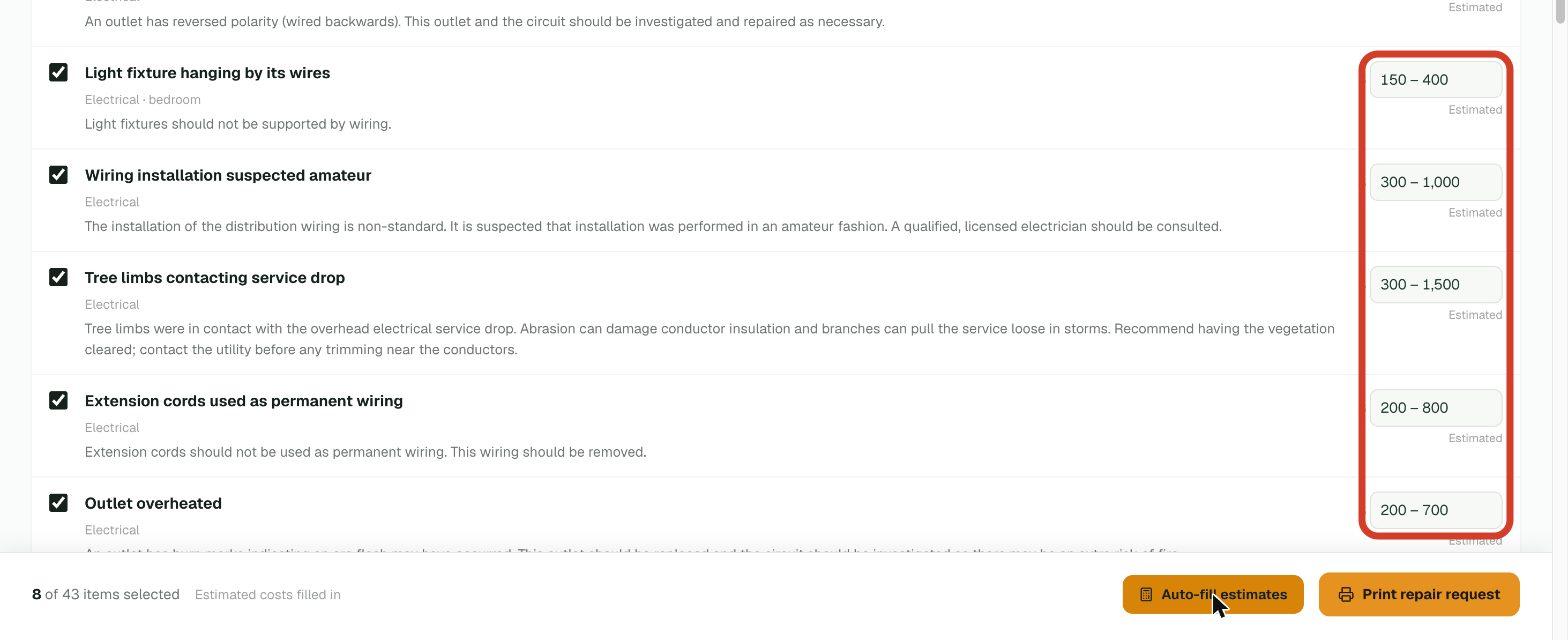
- 5Read the estimates. Each item gets a price range marked Estimated, the same your client and their agent will see.
- 6Back in the report editor, click Send to client. That emails the report to your client and to the buyer's agent.
Tip
If your reports need a signed inspection agreement, Repair request appears only after your client signs, and the preview opens on the signing page. Don't sign it yourself. To check sooner, turn off Require agreement for this report: Sharing & access > Agreement gate.
Change the estimates later
The repair request opens from the published report at any time, for you, your client and their agent. Nothing chosen there changes your report.
The screenshots use JetInspect's sample reports. Your own report shows your business name and your observations.