
Holding a report until it's paid
Keep a client out of the report until you are paid, then release it with Mark as paid.
Hold every new report until it's paid
- 1Click Services & Payments in the left menu, then Payment settings.
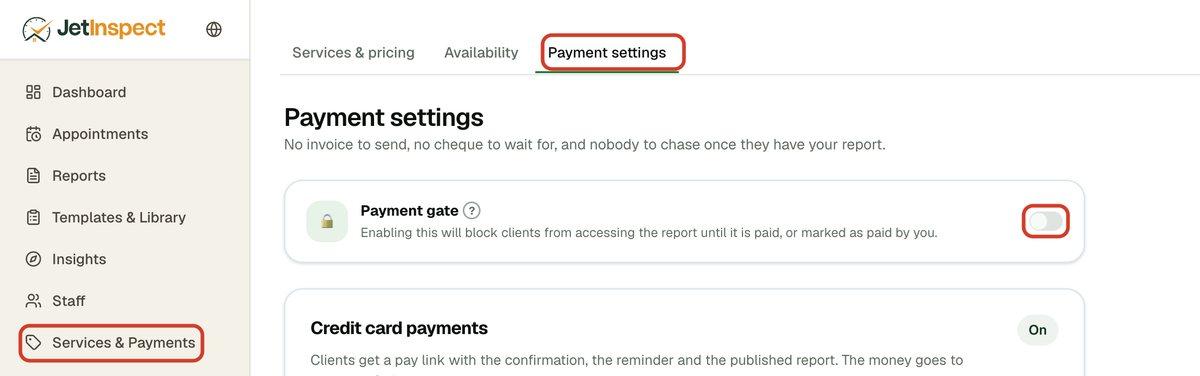
- 2On the Payment gate card, turn the switch on.
This applies to reports you start from now on. Reports you have already sent stay as they are. Turn the switch off to let new reports open right away.
Hold or release one report
- 1Open the report in the report editor and click Sharing & access.
- 2Under Payment gate, turn the switch on to hold this report, or off to let it open without payment.
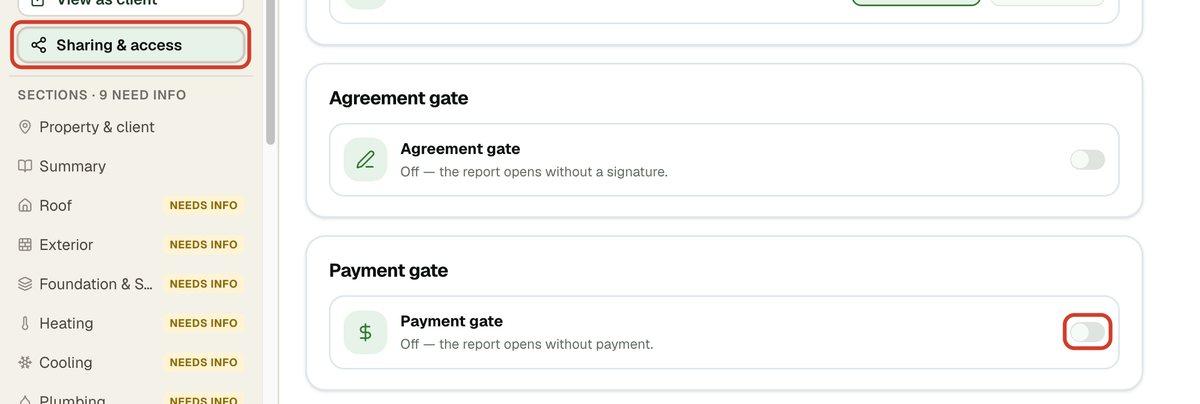
This changes only this report. The setting in Payment settings is just where new reports start.
What your client sees
A client who opens a held report sees that it is ready and needs payment first. If you take cards, they pay by card on that page and the report opens as soon as it is paid. If you don't, the page tells them to contact you to settle the payment, and shows your contact details. Either way, the page updates on its own once the report is released.
To take cards, see Taking card payments.
Mark a report as paid
Use this when a client pays you by cash or check, or any way outside JetInspect.
- 1In Reports, a held report shows Payment hold. Click Mark as paid beside it.
- 2Or open the report, click Sharing & access and, under Payment gate, click Mark as paid.
Your client can open the report right away. In your reports list, the report shows Paid once its balance is settled. A client who pays by card releases it the same way, with nothing for you to do.
Giving a refund has its own guide.