
Keeping reference notes in your library
Keep a private note on any section of your library, such as a standard's wording or a link, and read it while you write.
Add a reference
- 1Open Templates & Library > Comment Library, and stay on JetInspect sections.
- 2Click a section to open its subsections, then click one, such as Roof Covering. To write a note for the whole section, click Whole section.
- 3Click Add reference.
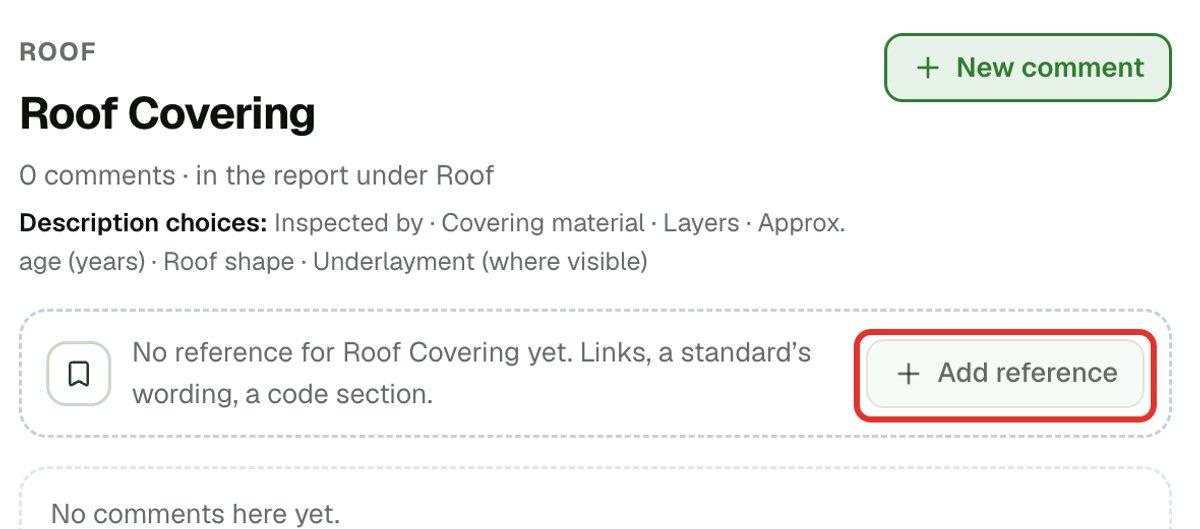
- 4Type your note. The buttons above the box add Bold, Bulleted list, Numbered list, Link and Warning. A Preview appears under the box as you type.
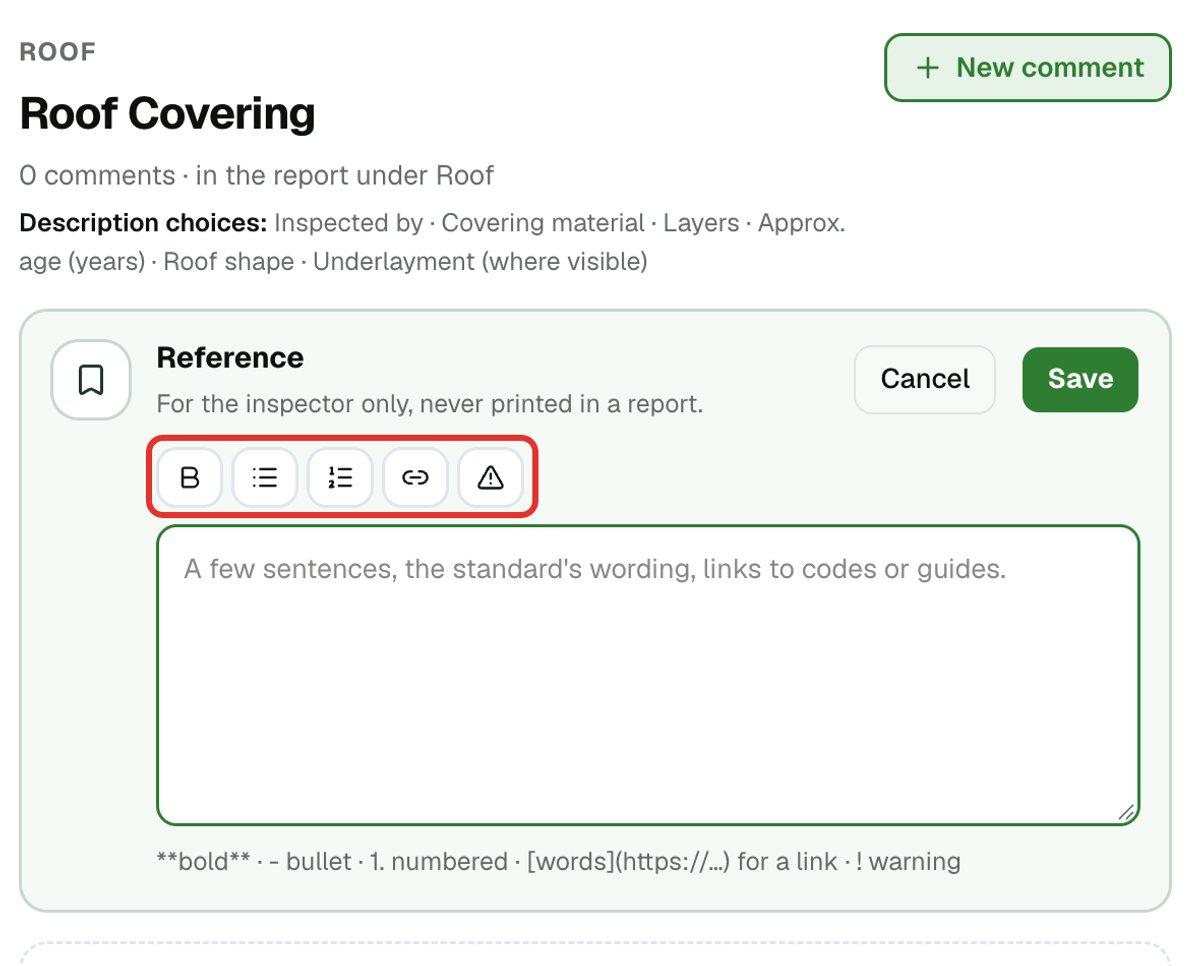
- 5Click Save.
Edit or remove a reference
- 1Open the section or subsection. Its reference shows under the heading.
- 2Click Edit, change the text and click Save. Cancel keeps what was there.
- 3To remove it, click Edit, clear all the text and click Save.
Keep one general reference for your whole library
Some reference belongs to no section, such as a report-writing guide or standards you quote everywhere. Your library has one place for it, called General reference. It is for you only and is never printed.
- 1Open Templates & Library > Comment Library.
- 2Click General reference under Overview.
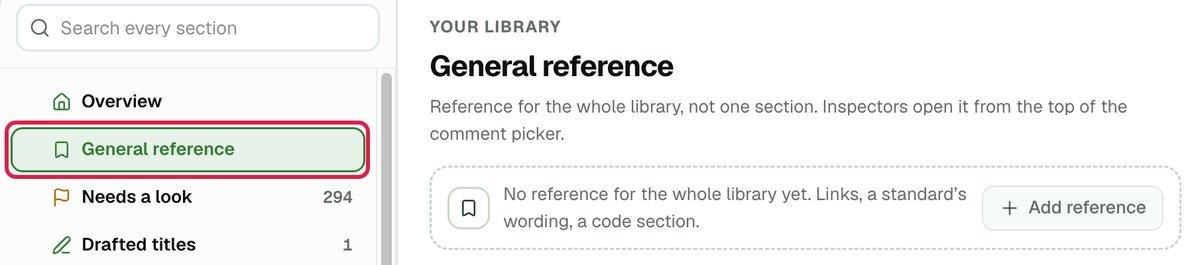
- 3Click Add reference and write it the same way as any other reference. Click Save.
You read it while you write a report, as below.
Read a reference while you write a report
Your general reference is one tap away. At the top of the comment picker, a General reference button opens it, wherever you are in the picker. Hide general reference closes it on the web.
A section or subsection that has a reference shows a bookmark beside its name in the comment picker. Open the section or subsection, then open the reference.
- 1In a report, open a section and click Add observation.
- 2Click into the section or subsection you want.
- 3Click Reference. The note opens beside the comments. Hide reference closes it.
On the photo screen, the General reference button shows only where the place has no reference of its own.
The phone can't write or change a reference. Add them on the web, and they appear on your phone once it syncs.