
Editing your website
Choose the look, edit the headline and your details, preview, save and publish your website, and where it lives.
Open your website settings
- 1Click Settings in the left menu, then the Website tab.
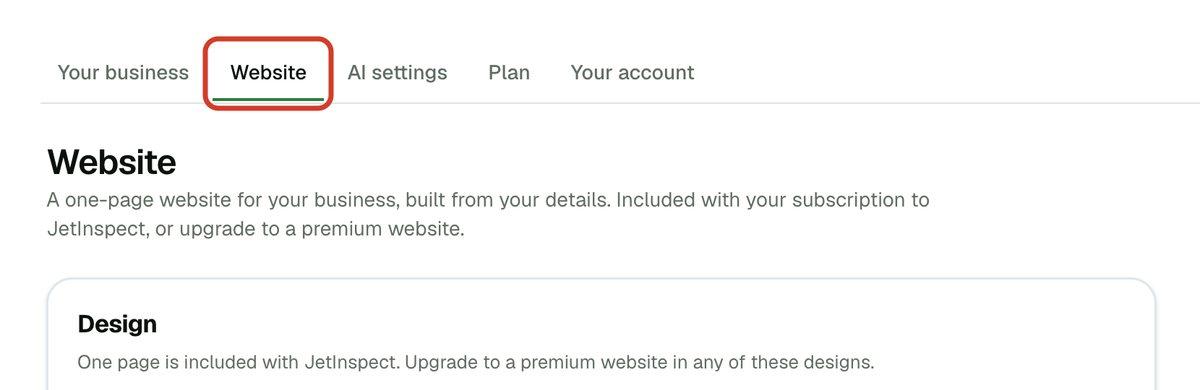
- 2Under Design, One page is marked Your design. The other designs are part of the premium website, covered at the end of this guide.
Your company name, logo, phone, license and town come from Your business. The Your details row says what is still missing and links to Edit your business and your services. Set those up first: Setting up your business covers it.
Choose the look
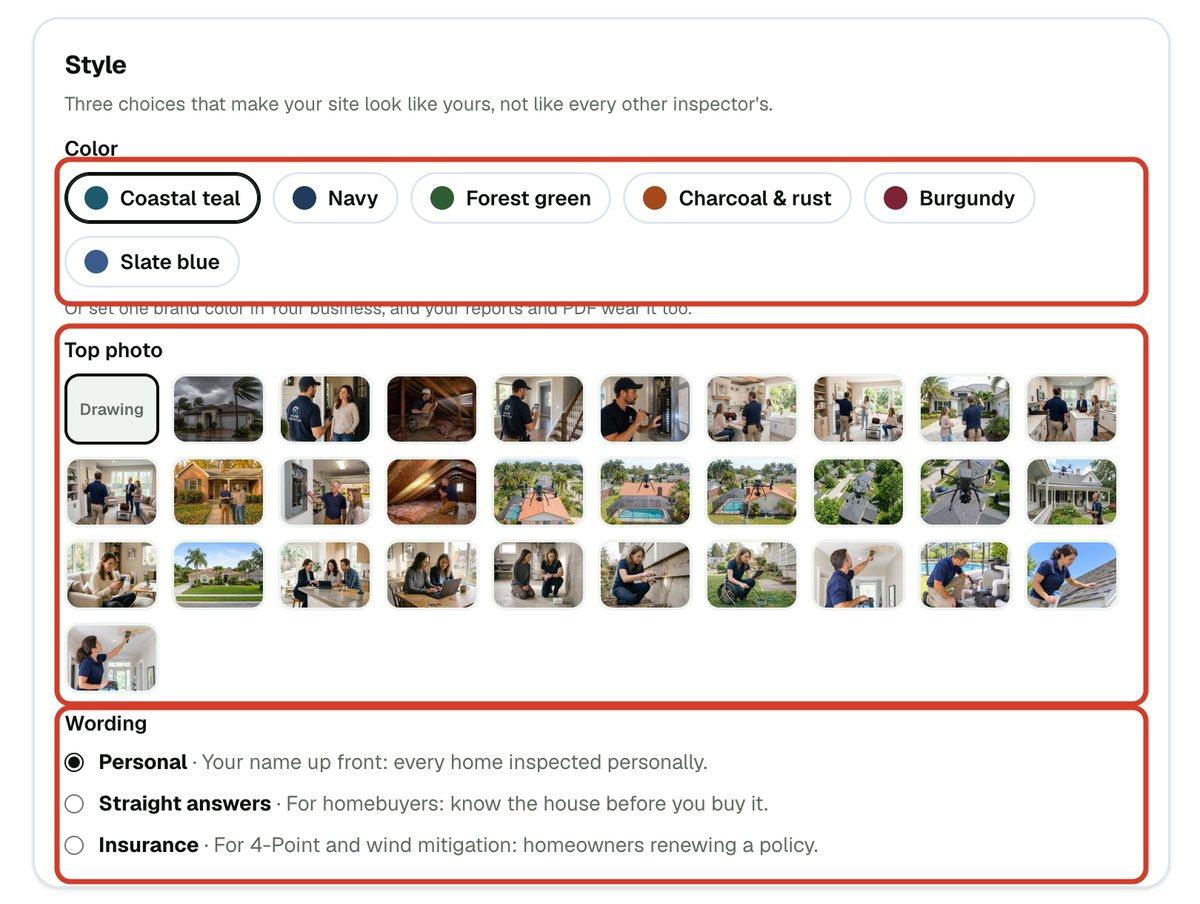
- 1Under Style, pick a Color. If you have set a brand color in Your business, the site uses it and this choice is replaced by a link to change it.
- 2Pick a Top photo, or the plain Drawing.
- 3Choose the Wording: Personal, Straight answers or Insurance. Each sets the tone of the page for a different kind of client.
Edit the headline and your details
- 1Under Headline and introduction, type over the Headline and Introduction. They start with the wording you chose. Click Reset to the suggested wording to go back.
- 2Under About you, fill in what you want visitors to see. Everything is optional, and anything left blank is left off the page.
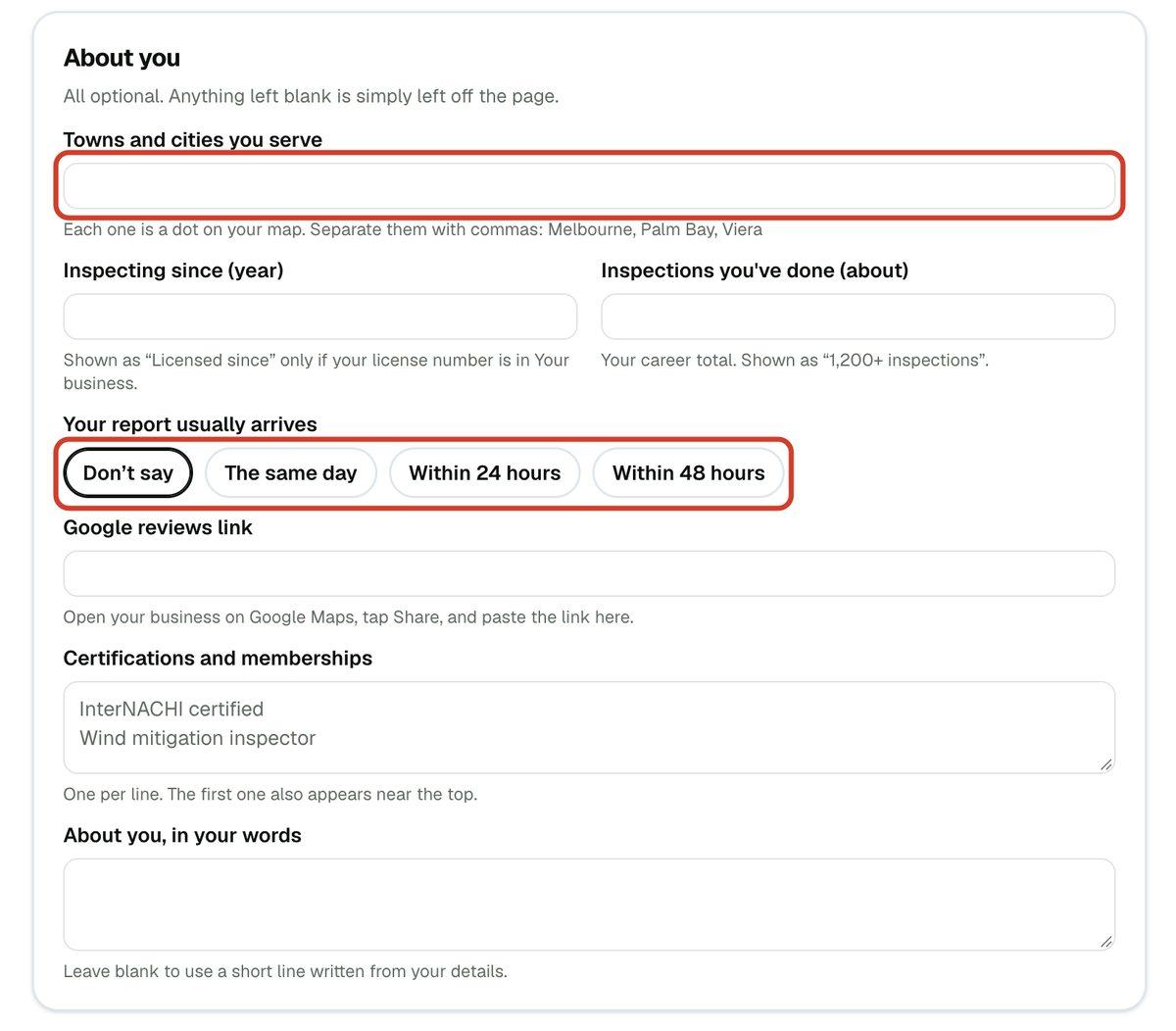
Add the Towns and cities you serve, separated by commas. Each one is a dot on your map. You can also add the year you started inspecting, how many inspections you have done, how fast your report usually arrives, your Google reviews link, your Certifications and memberships, and a few lines About you, in your words.
Preview, save and publish
- 1Scroll to the Preview at the bottom. It is your real page and redraws as you make choices, before anything is saved.
- 2Click Save website. Nothing reaches your public page until you save.
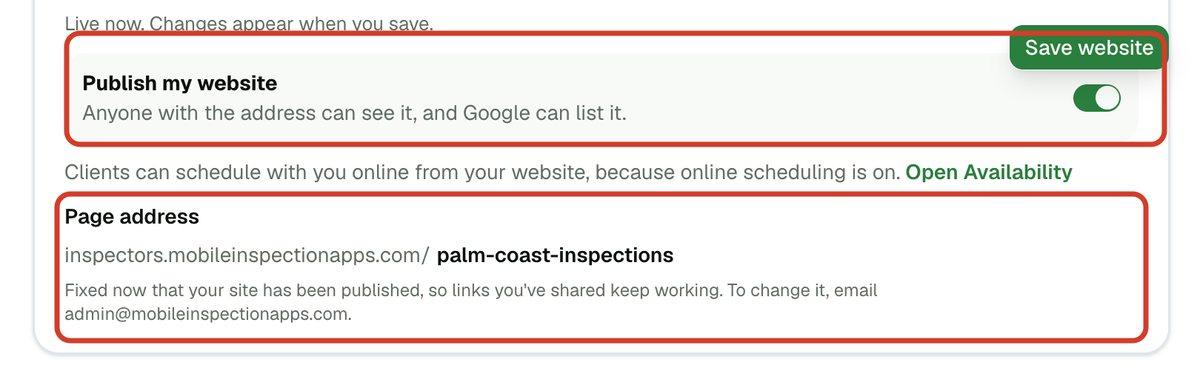
- 3In Your website, turn on Publish my website so anyone with the address can see it, then save. Click Open my website to see it live.
Where your website lives
Your Page address is inspectors.mobileinspectionapps.com/ followed by a name made from your company. Until you first publish, you can correct it. After that it is fixed, so links you have shared keep working; email support if you must change it. Want your own address instead, like www.yourbusiness.com? See Connecting your own domain for that.
To show sample reports on the site, see Showing sample reports on your website. To help clients find it, see Getting found on Google.
If you work for an inspection company
Your company's website is created and published from the owner's account. In Settings > Website, you will see that it is set up by the owner, with nothing to edit.