
Giving a refund
See when a client is owed money back, send the refund from Stripe, and check what your client and your report show afterward.
When you owe a refund
JetInspect flags a refund when a client has paid more than the appointment is now worth. That happens when you lower the quote after the client paid, or when you cancel an appointment they paid for. A cancelled appointment owes back everything the client paid.
The flag is an amber Refund needed button with the amount, on the appointment in your Appointments and Reports lists. On the phone, the same appointments are grouped under REFUND NEEDED on the home screen. Cash and check payments you marked as paid are not part of this. Those you hand back yourself.
Send the refund
- 1Click Refund needed on the appointment in Appointments or Reports. The appointment opens with an amber banner that says how much was overpaid.
- 2Click Refund in Stripe. Your Stripe dashboard opens on that payment in a new tab.
- 3In Stripe, refund the amount from the banner. Stripe refunds the card the client paid with.
- 4Come back to the appointment. The banner clears once Stripe confirms the refund.
An appointment paid in two parts, such as a deposit and a balance, shows one Refund it from the $X charge button for each payment on the web. Pick the payment to take it from. A payment already part-refunded says how much was already returned.
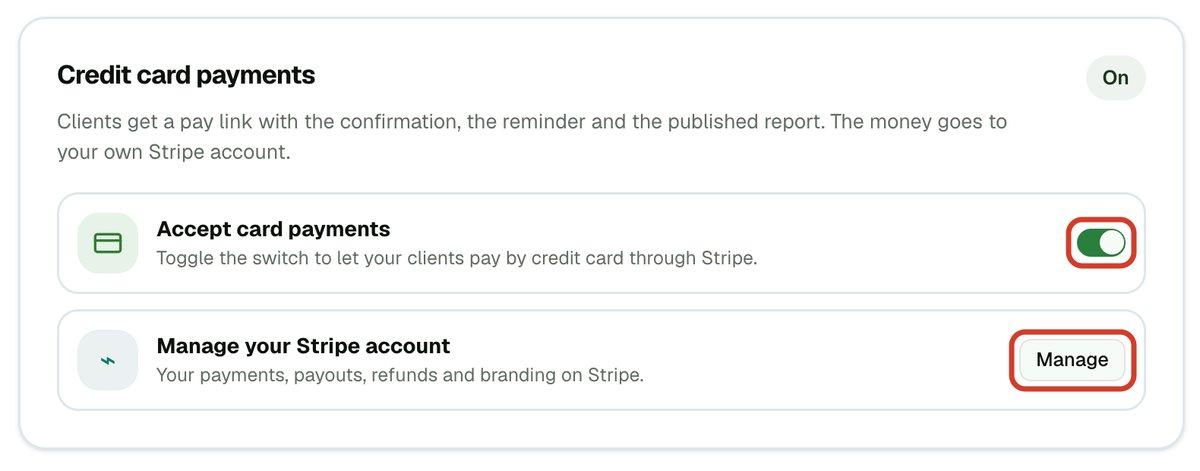
You can refund less than the full payment, or the whole of it, from Stripe. You can also open Stripe any time from Services & Payments > Payment settings: click Manage beside Manage your Stripe account.
- 1To find your payments and refunds, click Manage.
What your client sees
On the appointment page your client opened, the total shows a line while the refund is waiting: Overpaid — a refund is owed to you, or Cancelled — a refund is owed to you for a cancelled appointment, with the amount. The payment section tells them the amount will go back to the card they used. After you send it, the page shows a Refunded line with the amount, and Stripe emails them a refund receipt.
What changes after a refund
The Refund needed button goes away, and a settled appointment shows Paid in your reports list again. While a refund is owed, the appointment does not show Paid.
A refund never locks the report again. A client who has paid and is then refunded keeps their access, and is not asked to pay a second time. The one exception is when you answer that an extra refund was not goodwill: then the client is asked for the difference.
If you work for an inspection company
Card payments go to the company owner's Stripe account, so only the owner sees Refund in Stripe. If a refund is owed on your appointment, tell the owner.