
Publishing, previewing and sending
Publish puts the report online and emails nobody; check it as your client will, then send it.
Publish and preview the report
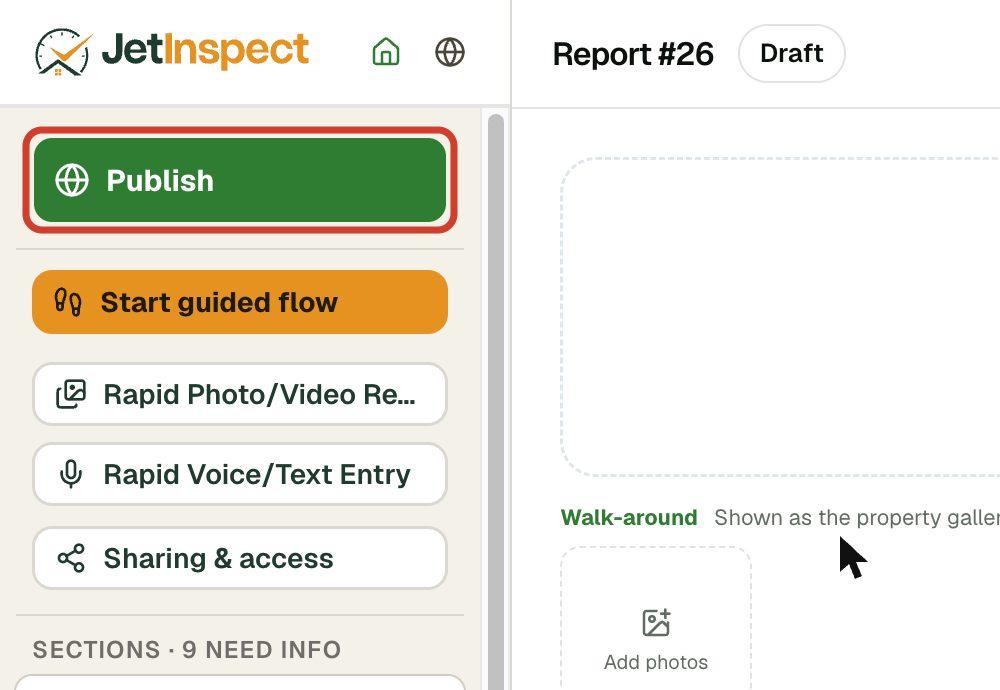
- 1In the report editor, click Publish at the top of the left-hand column. You'll see “Report published — not sent to your client yet.”
- 2Click View as client. The report opens in a new tab, as your client will see it. Read it through, and open Repair request or Download PDF if you want to check those too.
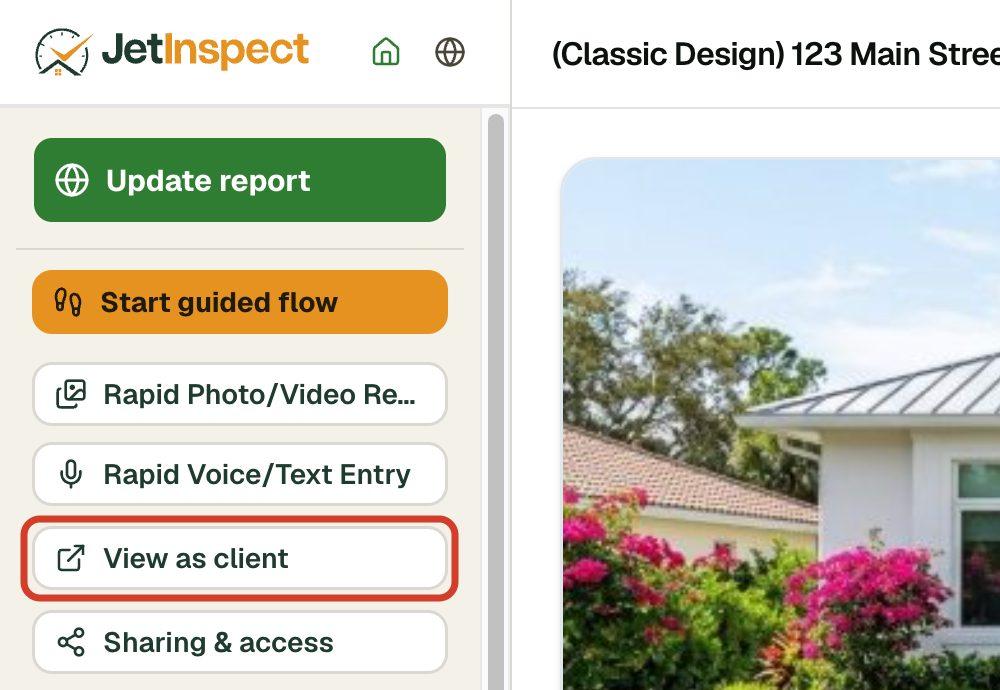
- 3To fix anything, go back to the editor, make the change, and click Update report.
Send it to your client and agent
- 1In the report editor, click Send to client. It appears under Publish once the report is published.
- 2The column then says Report emailed to and your client's address.
Your client receives an email titled “Your inspection report” with the property address, and the buyer's agent receives “Inspection report” with a button to open it. Both carry your business details, and a reply goes to your email address. See what your client and agent see.
Change a report after sending it
Edit the report as usual, then click Update report (on the phone, publish again). The online report changes for everyone who has the link, and nobody is emailed again.
If payment is due before the report opens
When a report is set to open only once it is paid, your client can't open it until the payment comes in or you mark it paid. On the phone, Report published shows Held until paid: tap Mark as paid there, or do it later from your reports list or in the web editor.