
Templates and optional sections
Start from a built-in or your own template, and switch optional sections like Pool & Spa on or off.
See what a built-in template contains
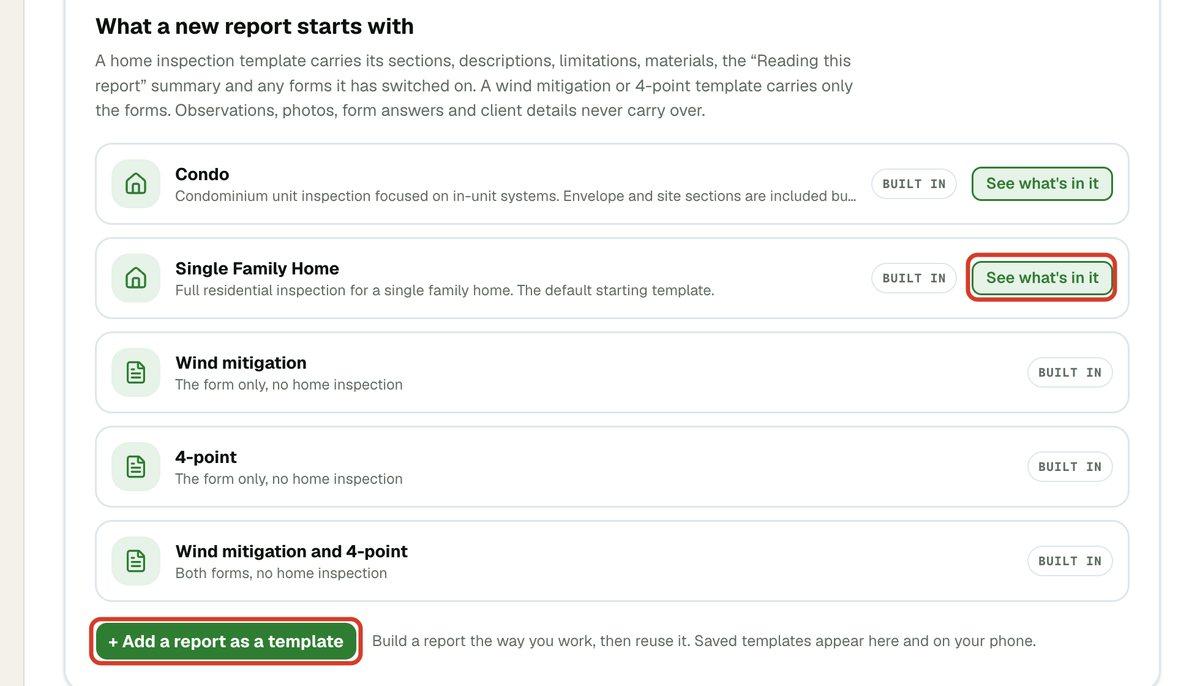
JetInspect comes with Condo, Single Family Home, Commercial, Wind mitigation, 4-point and Wind mitigation and 4-point. The last three are forms only, with no home inspection. On the web you can look inside the three inspection templates before you use one.
- 1Open Templates & Library. Templates opens first.
- 2Under What a new report starts with, click See what's in it beside a built-in template.
- 3Read down the list of sections and their subsections. A section marked Optional stays off until you switch it on in a report.
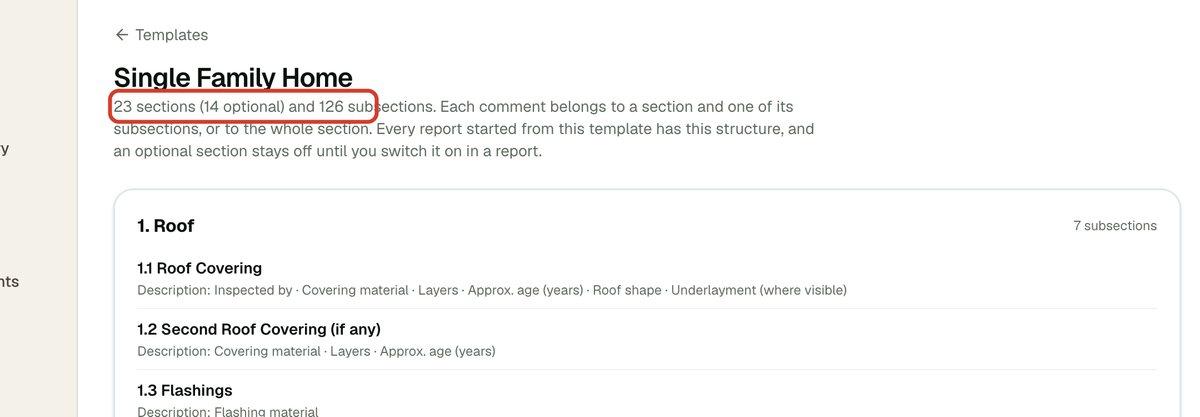
You can read a built-in template but not change it. It is a good way to see where your own comments will land.
Choose a template when you start an inspection
- 1Click Start new inspection. If you have an appointment today, click it, or click Start an unscheduled inspection.
- 2Under What are you inspecting?, click a template. The report is created as soon as you click.
Built-in templates come first, then the ones you saved under Your templates. The one you used last is marked Last used.
Save a report as your own template
Build a report the way you work, then reuse it. The template keeps the report's sections, descriptions, limitations, materials and its Reading this report summary. A wind mitigation or 4-point report keeps only its forms. Observations, photos, form answers and client details are never copied.
- 1Open Templates & Library.
- 2Click + Add a report as a template.
- 3Click the report to turn into a template.
- 4Type a name under Template name and click Save template.
Your template joins the list, tagged Yours on the web, and shows on your phone and on the web. To change what it contains later, click or tap Update from a report beside it and choose the report to copy. The name stays. The pencil icon renames it, and the trash icon deletes it. Reports you already started from it are not affected.
Add or remove a section in a report
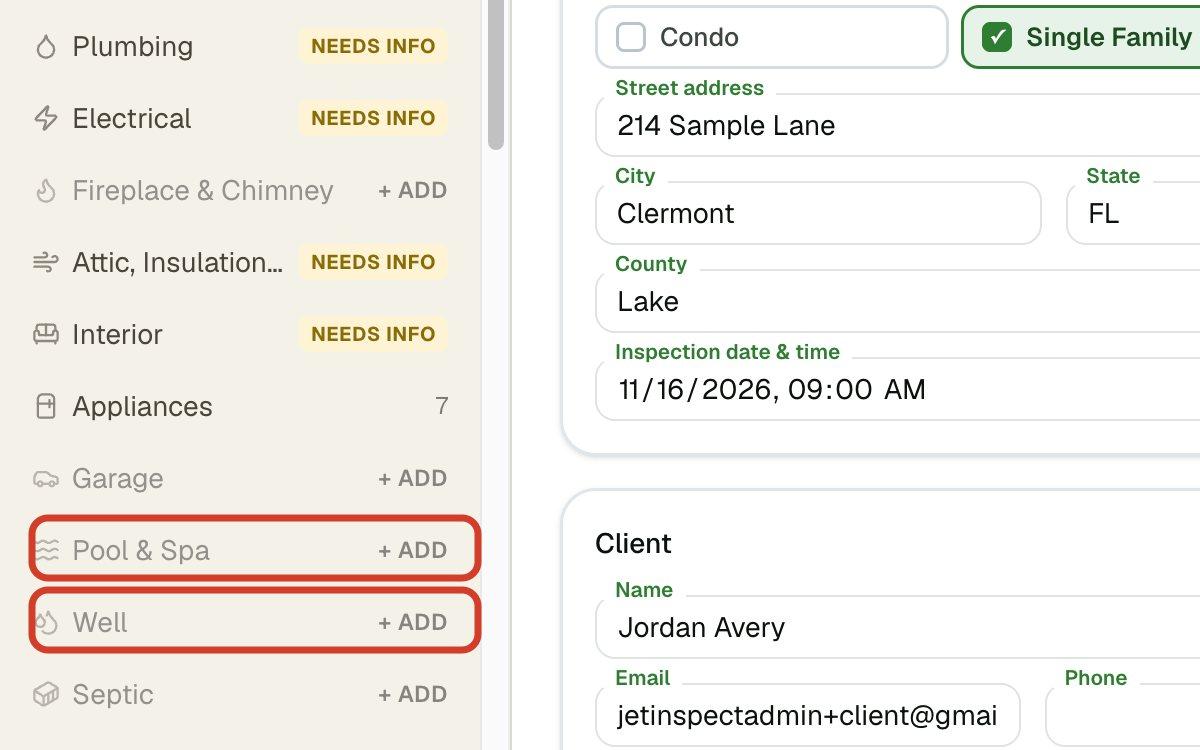
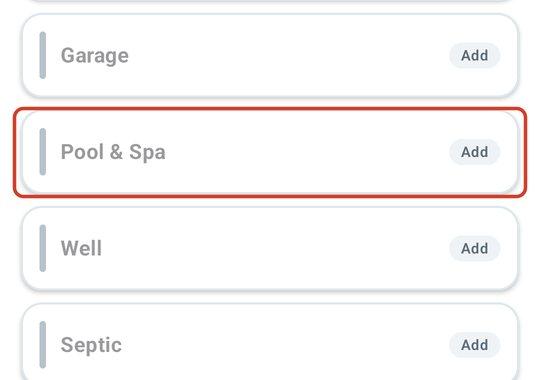
Some sections, such as Pool & Spa, Well and Septic, start switched off, because most homes do not have them. Switch one on when the home has it. You can also remove a section you do not need. Anything you entered in a section is kept, and comes back if you add it again.
- 1Open the report. Sections that are off are grayed out in the list on the left.
- 2Click the section marked + Add. It switches on and opens.
- 3To take a section out, open it and click Remove in the list, then confirm Remove section.
Change a section's scope wording
Each section of a report has a short paragraph saying what that part of the inspection covers. You can use the standard wording or write your own. Home inspections (Single Family and Condo) and Commercial inspections have separate lists, so changing Cooling for a house does not change it for a commercial building.
- 1Open Templates & Library, then Scope statements.
- 2Find the section under Home inspections or Commercial inspections and click Edit.
- 3Change the wording and click Save. Back to standard returns to JetInspect's wording.