
Using the phone and the web together
One account, two ways in: sign in the same way, how changes move, and what each side does.
Sign in with the same Google account
- 1On the phone, tap Sign in with Google.
- 2On the web, open Sign in to JetInspect and click Continue with Google.
- 3Choose the same Google account both times.
The account is what keeps your reports, photos, comment library and settings together. A different Google account is a different JetInspect account, with none of your reports in it.
What each one is for
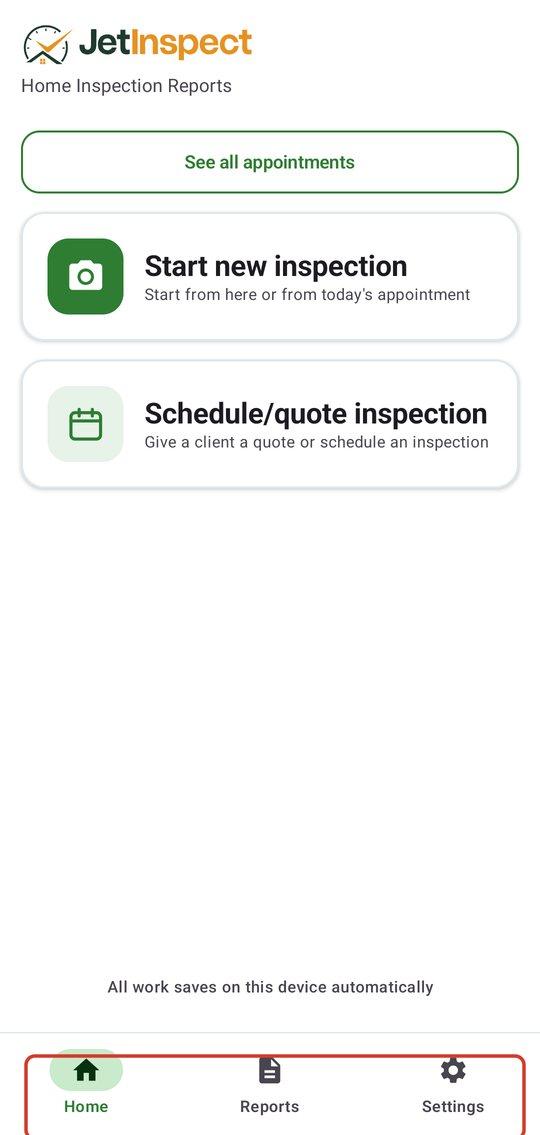
Use the phone to start an inspection, capture photos and video, and write observations on site. It keeps working with no signal. Reports already on the phone stay open, and your work saves on the phone first. If you are not signed in, Continue offline lets you keep working, but publishing, backup and scheduling need you signed in.
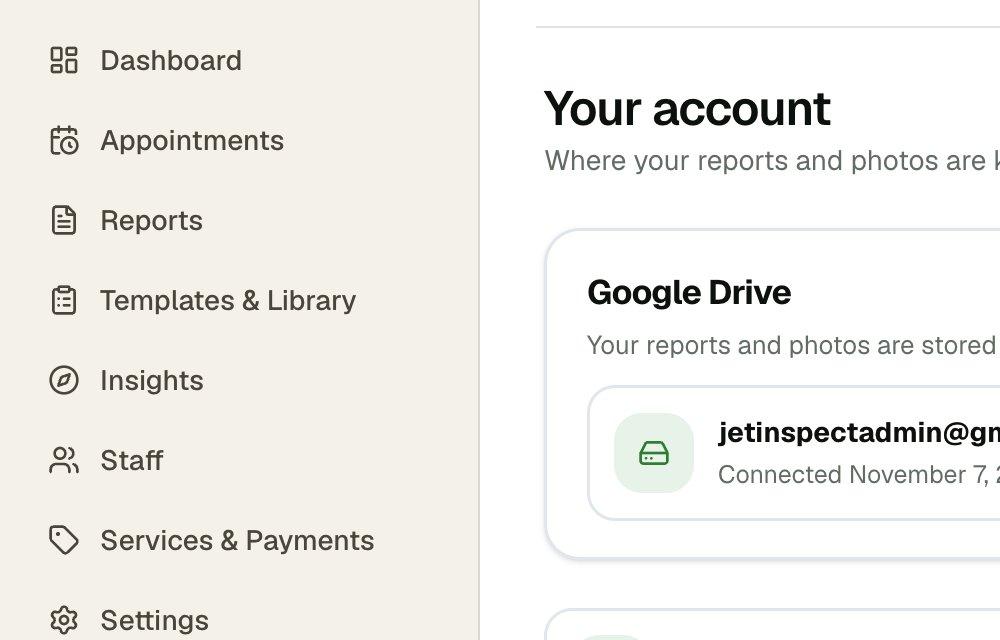
Use the web to edit a report at your desk, publish it, and manage the rest of your business. The left menu holds Dashboard, Appointments, Reports, Templates & Library, Services & Payments and Settings. Start with the product tour if you want to see the whole path.
- 1The web's left menu is where the desk work lives.
How changes move between them
You do not press anything to move a report. Report text, observations and your settings are saved to your account and picked up by the other side about every minute:
- 1The phone checks the report you have open about every minute, and pulls in what you changed on the web.
- 2The web does the same for the report open in your browser, and refreshes it for you. It waits if you have a change that is not saved yet, and a browser tab you are not looking at checks as soon as you switch back to it.
- 3Your account settings follow the same pattern: change them on the web and the phone picks them up.
Photos and video go from the phone to your own Google Drive, and that is how they reach the web. They take longer than text on a slow signal. See Your reports in Google Drive.
If a change has not shown up
- 1Wait a minute. Both sides check about once a minute, not instantly.
- 2Check you are on the same Google account on both. This is the usual cause.
- 3On the phone, make sure it has a signal and you are signed in, not working offline.
- 4If the phone home screen shows Back up now under a line such as 1 report not backed up yet, tap it.
- 5On the web, reload the page.
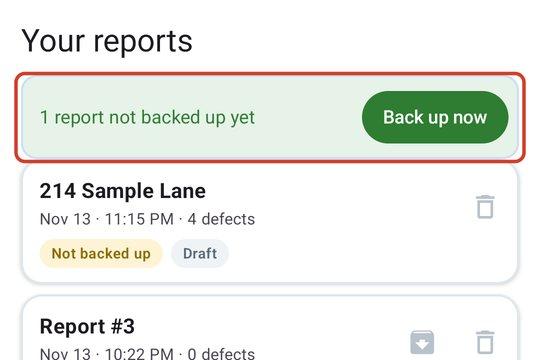
Your work is safe on the phone while it waits.
What only one side can do
These are done on the web. The phone uses the result but cannot change it:
- 1Your prices and services: Setting your services and prices.
- 2Your available days and hours: Setting your availability.
- 3Your website: Editing your website.
- 4Taking card payments: Card payments.
- 5Your inspection agreement: Your inspection agreement.
- 6Brand color and certification badges: Setting up your business.
- 7Importing your own comments from a spreadsheet: Importing your comments.
- 8Setting up and running a firm with several inspectors.
These are done on the phone: texting your client the report link, which opens your own messaging app with the message ready ( Texting the report link), and calling a client from an appointment. Capturing photos and video on site belongs to the phone too.
If you work for an inspection company
Sign in with the same Google account on both, as above. Some business settings belong to your company rather than to you. On the web they show as set by your company, and you see only your own name and license.