
Writing the summary
The opening of your report: pick paragraphs from your library or write your own.
Open the summary
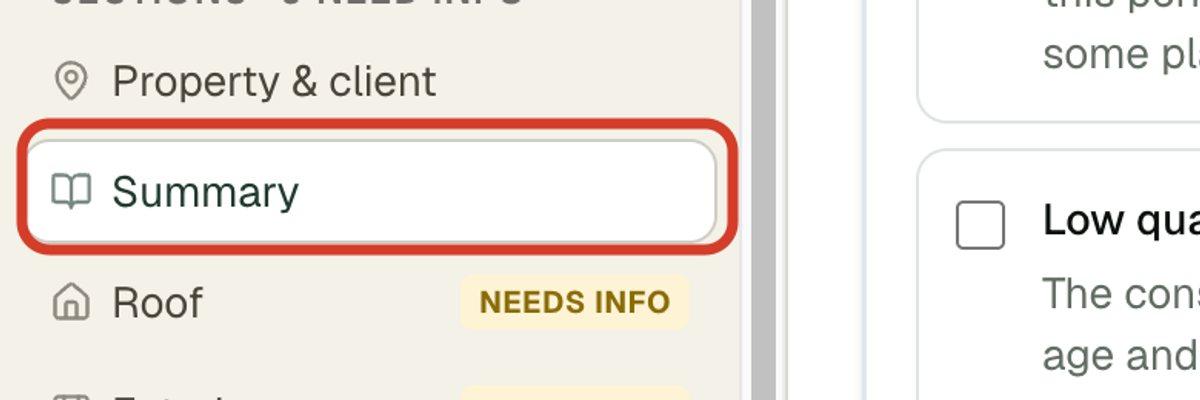
- 1Open the report. In the section list, click Summary. It sits right under Property & client.
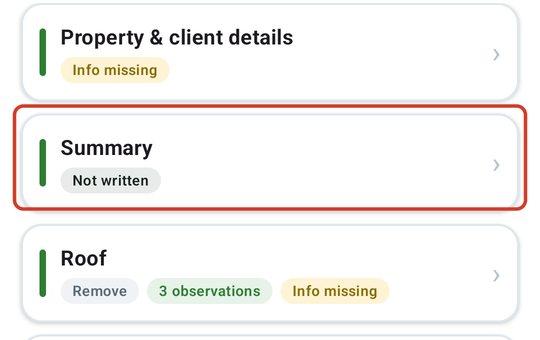
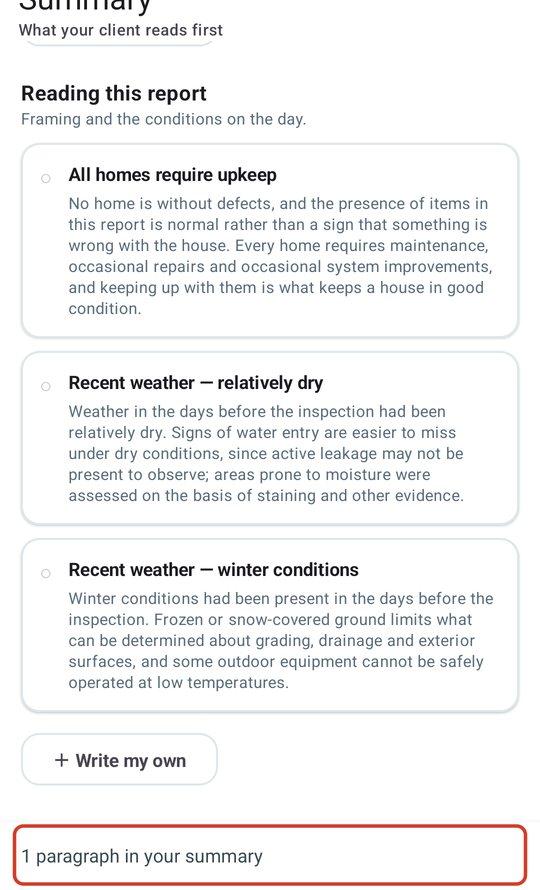
- 2Once you have picked paragraphs, a number beside Summary shows how many.
Pick your paragraphs
The paragraphs are grouped in three parts, in the order the client reads them: The house in perspective opens the summary, What stood out adds anything worth raising before the sections, and Reading this report gives the framing and the conditions on the day. You can pick more than one in each part.
- 1On the Summary page, read the paragraphs under each heading. The full text is shown, because it is what your client reads word for word.
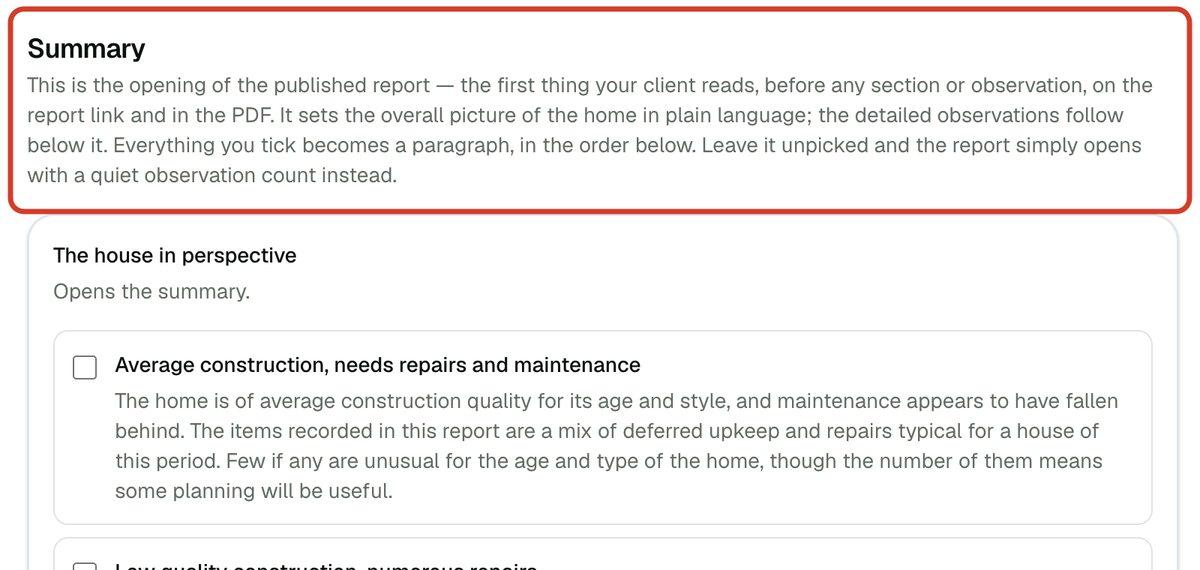
- 2Tick each paragraph you want. Tick it again to take it out.
Write your own paragraph
If none of the paragraphs says it the way you would, write it yourself. It is saved to your personal library, so it is there on every future report.
- 1In the part it belongs in, click Write my own.
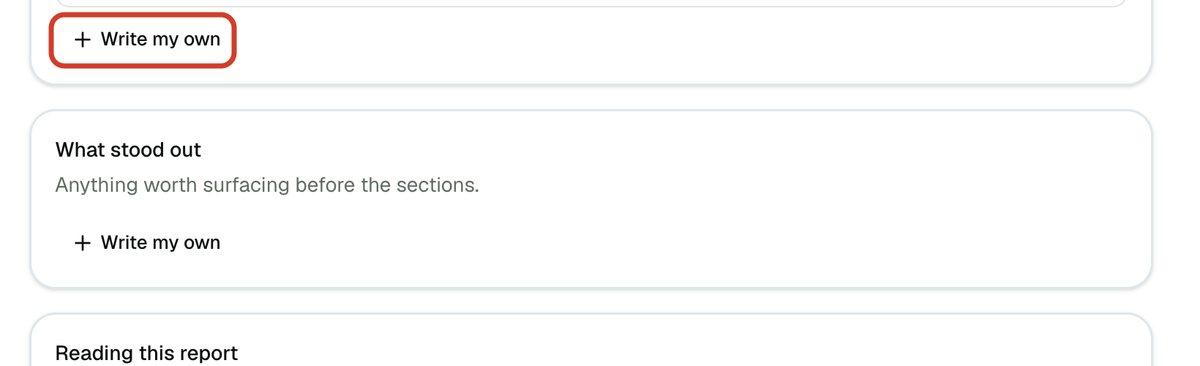
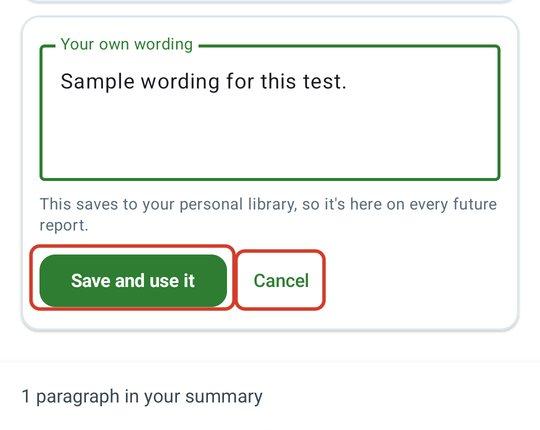
- 2Type it the way your client will read it.
- 3Click Save and use it. It is added to this report. Cancel closes the box without saving.
In the guided flow
The guided flow on the web asks for the summary near the end, in its Summary & publish step. After your sections, click Next: Summary →, pick or write your paragraphs as above, then click Continue →. If the report already has a summary, the guided flow skips this screen and goes straight to the finish.
What your client sees
The paragraphs you picked open the published report and the PDF, in the order above. If you pick nothing, the report opens with a short count of the observations instead.