
Texting the report link
Text your client the report link from the phone after you publish, and copy the link on the web.
Text the link to your client
- 1Make sure your client's phone number is on the report: Property & client details > Client > Phone. It saves as you type.
- 2Tap Publish. When the Report published box opens, you can tap Preview report to see what your client will see.
- 3Tap Send to client. JetInspect emails them the report link.
- 4Tap Also text it. Your messaging app opens with a text to your client's number. The message reads “Your inspection report is ready. Sign and view it here:” followed by the link.
- 5Check the message and tap send in your messaging app.
Also text it appears once the email has gone out, because a text is usually the one clients read first. If you leave without sending, the report shows a Not sent tag in your reports list.
If your client has no phone number
The button reads Share the link instead. It opens your phone's share sheet with the same message, so you can send it by any app you like. You can also add the number under Property & client details > Client > Phone and publish again from the report to bring the box back.
If your client has no email address either, the box tells you nothing was sent automatically and to text them the link. Add their email under Property & client details > Client > Email and tap Send to client, or copy the link from the web (below).
Copy the link on the web
- 1Open the report and click Sharing & access.
- 2In Delivery, click Copy link on the Client row. You see Link copied. Paste it into a text, an email or anywhere else.
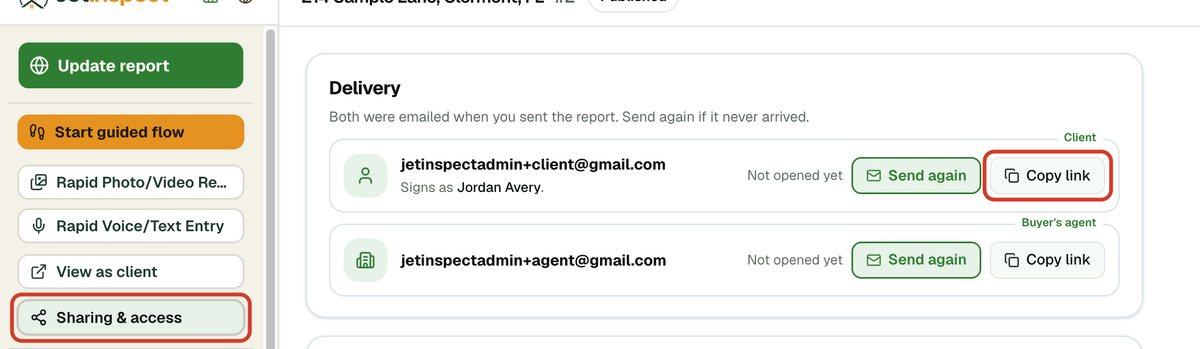
Send again on the same row emails the client the link once more. Copy link works once the report is published.