
Setting your services and prices
Your price sheet: the inspections and add-ons you offer, how each is priced, and what clients read.
Open your price sheet
- 1Click Services & Payments in the left menu. Services & pricing opens first.
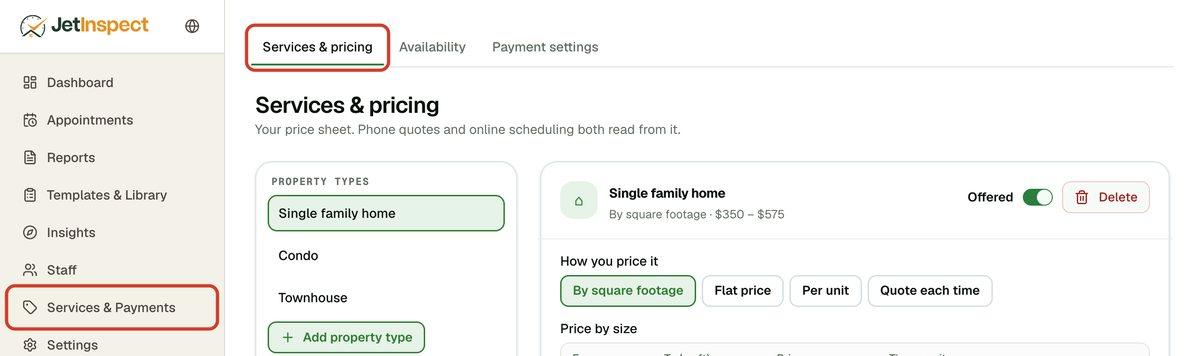
- 2Your services are listed on the left. Property types are the inspections themselves, such as a single family home. Add-on services are extras, such as radon or a sewer scope. Click one to edit it.
There is no Save button: changes save as you type. A service that still needs a price says so under its name.
Price a service
- 1Under How you price it, choose By square footage, Flat price, Per unit, Quote each time or By distance.

- 2Fill in the boxes for that choice.
Flat price takes one Price and the Time it adds to your visit. Per unit is for things you count: enter the Price per unit, What one unit is and the Minutes per unit. Quote each time has no set price: you enter it on each quote, and you can set its Usual time here. By distance is for a travel fee: see Charging a travel fee by distance.
Price an inspection by square footage
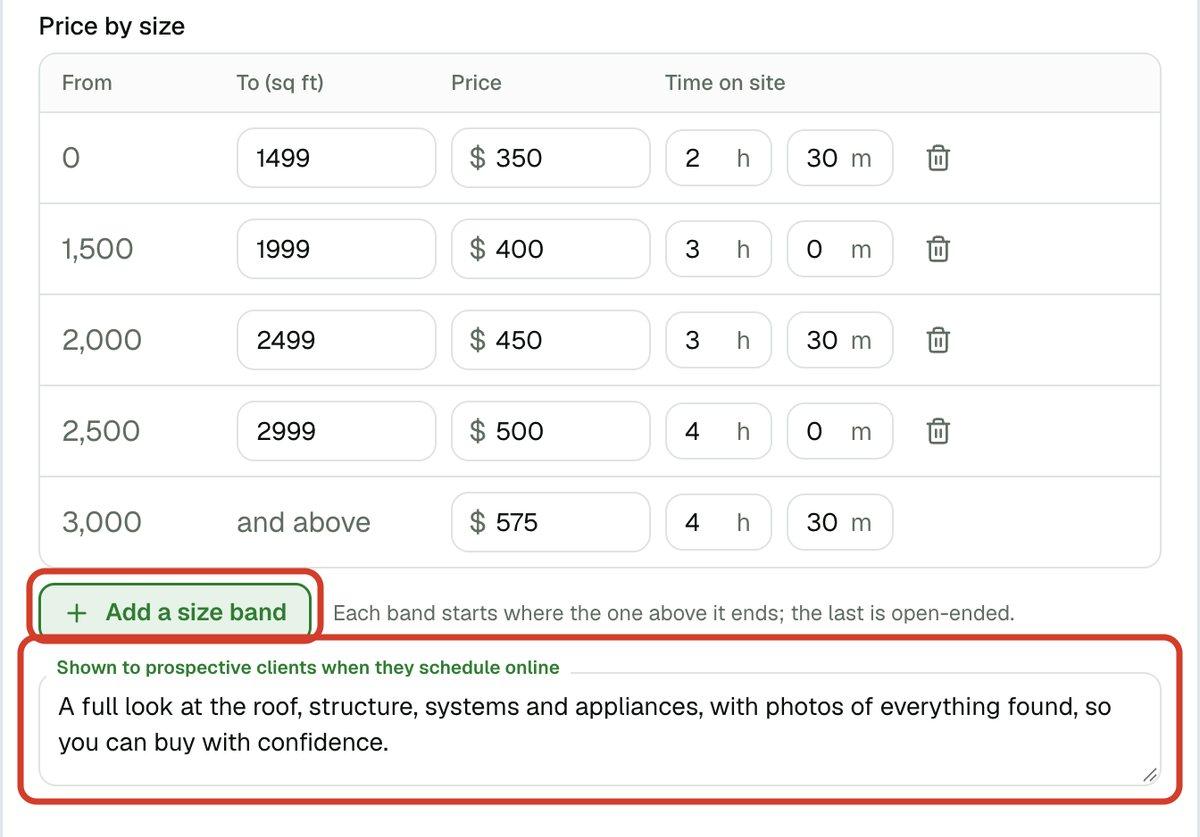
- 1Under Price by size, fill in each row: where the size range ends in To (sq ft), its Price, and the Time on site. Each row starts where the one above it ends, and the last row covers every larger home.
- 2Click Add a size band for another row. The trash can at the end of a row removes it.
Describe it for your clients
The box under the prices is what clients read when they schedule online. A sentence or two on why the service matters works well. It doesn't appear on your own quote screen.
Add, hide or delete a service
- 1Click Add property type or Add add-on to add your own, then name and price it.
- 2Turn Offered off to stop offering a service without losing its prices. It shows as Not offered right now in the list.

- 3Delete removes a service for good, after you confirm. Appointments already quoted with it keep their prices.
To rename a service, click its name at the top and type.
If you work for an inspection company
The company's owner sets the prices for everyone, so you won't see this page.