
Rapid Voice/Text Entry
Add observations without a photo by speaking or typing, and have each one go into the right section.
Note
Rapid Voice/Text Entry adds observations without a photo. Say or type what you see, and JetInspect finds the comment and inserts it into the right section. Use it for things you did not photograph, or to add several observations in a row. It works on the web and the phone. To find comments inside one section, see Finding the right comment.
Open Rapid Voice/Text Entry
- 1In the editor's left column, click Rapid Voice/Text Entry.
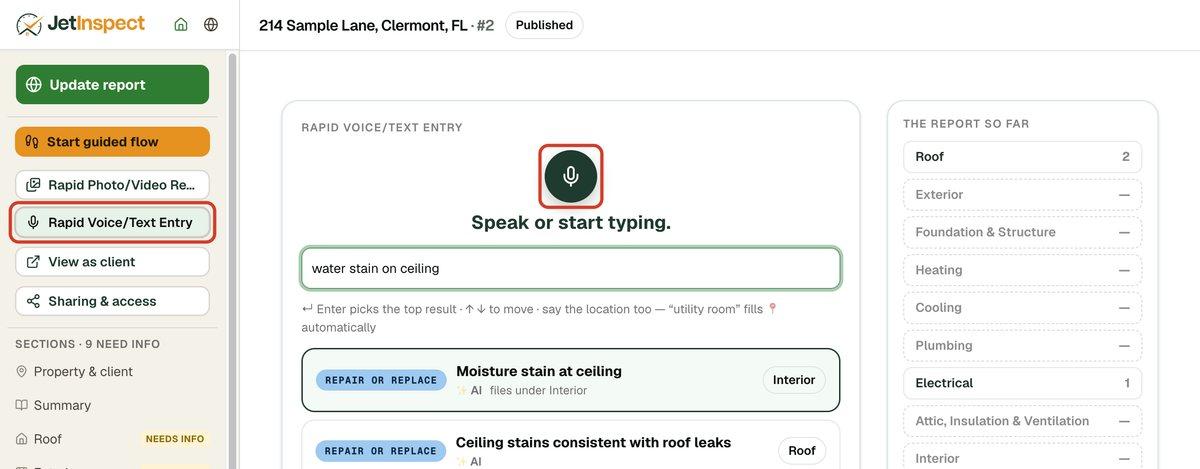
- 2On the right, The report so far shows how many observations each section has.
Add an observation
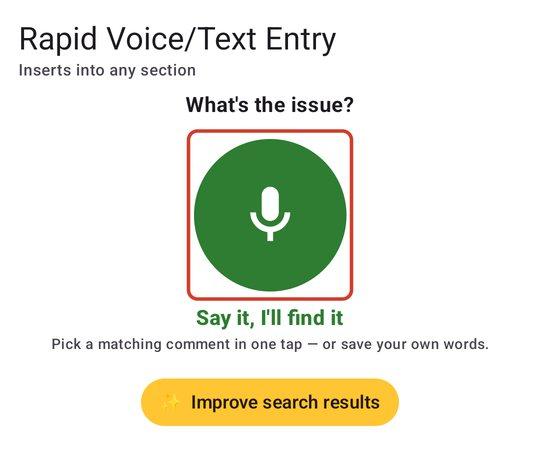
- 1Click the microphone and speak, or click the box and type a few words.
- 2Matching comments appear as you go. The top one is outlined, and shows the section it goes into. Say the location too (“utility room”) and it fills in the location for you.
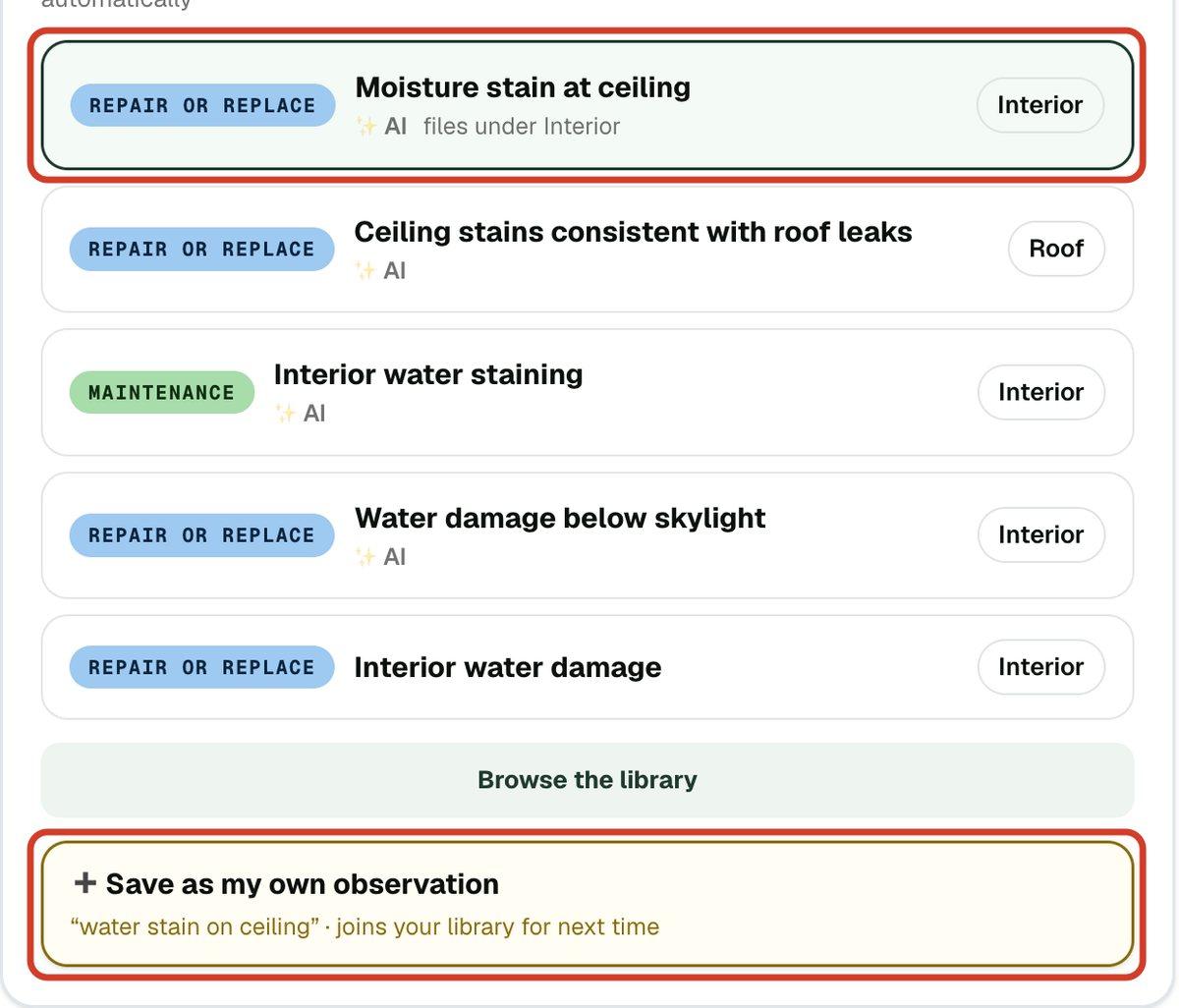
- 3Click the comment you want, or press Enter for the top one. Use the up and down arrow keys to move to another. It goes into its own section, the box clears, and you can type the next one.
Say a description, such as the roof's age, or a limitation, such as “attic viewed from the hatch”, and you also get Description and Limitation rows. Picking one sets that field or limitation in its section. If the section is switched off, the row says so, and picking it switches the section on.
Tip
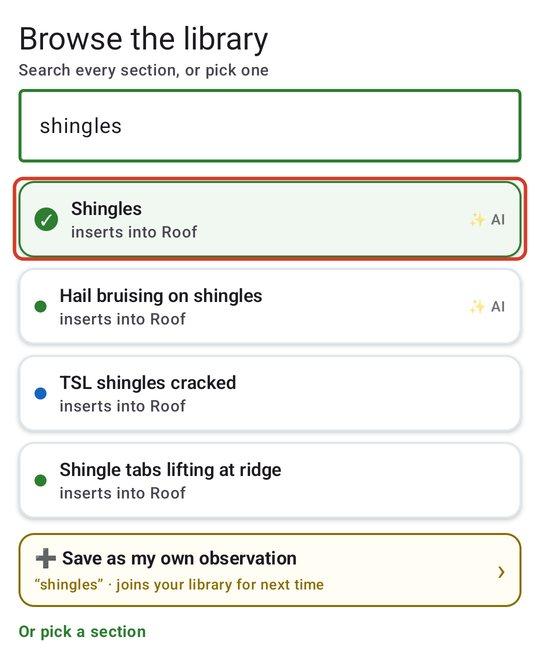
On the phone this screen is for speaking. To type instead, tap Browse the library instead and search there. On the web, Browse the library opens the same kind of list.
When nothing matches
- 1Click Save as my own observation. It adds your exact words to the report and to your library for next time.
Your saved wording can be edited later. See Saving and editing your own comments.
Fix a mistake
- 1After each pick, a card says Added and where it went. Click Undo on it to take it back. The card also has Location and Add photo/video, if you want to attach something to what you just added.