
Showing your Google reviews on your website
Connect your Google Business Profile so your rating and reviews show on your premium website.
What you need
- 1A Google Business Profile for your business, verified by Google. Google shares reviews only for verified profiles. To set one up, see Get found on Google.
- 2The Google account you use to manage that profile. Sign in with that account when Google asks.
- 3The premium website. The one-page website can only link to your reviews. See Google reviews link below.
Connect your Google reviews
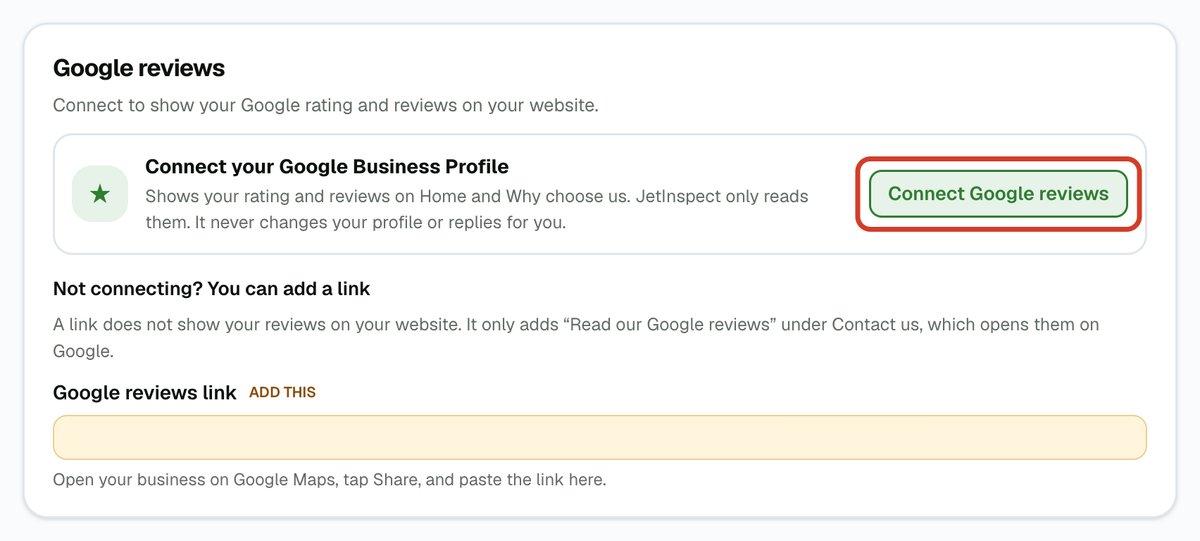
- 1Open Settings > Website and click the Site information tab. Find the Google reviews box.
- 2Click Connect Google reviews.
- 3On Google's screen, sign in with the account that manages your Business Profile. Leave the business permission selected and press Continue.
- 4If that account manages more than one business, JetInspect asks Which business is yours? Click Use this one beside yours.
If Google says that account doesn't manage a Business Profile, or the profile isn't verified yet, sign in with the right account or connect again once Google has verified it.
What shows on your website
The reviews section on Home and Why choose us shows your star rating, how many Google reviews you have, and up to three reviews, word for word as written on Google. Your rating also shows at the top of Home. Until you connect, the reviews section stays hidden. Each page's own switch for the section still hides it if you want.
Connecting saves right away. You don't need to click Publish.
Choose which reviews show
By default the site shows your newest five-star reviews that have words. To pick your own:
- 1In the Google reviews box, click Choose reviews.
- 2Click up to three reviews, in the order you want them. The number on each shows its place.
- 3Click Save. To go back to the default, click Use the newest five-star reviews.
Under it are three switches: Show your rating, Read all reviews on Google and Leave a review. The last two add a button that opens your business on Google, or Google's review box for it.
Keeping it up to date
JetInspect checks Google again every week. To check right now, click Check now. If Google can't be reached, your site keeps the last reading it had, for up to 30 days. If Google asks you to sign in again, the box says so: click Connect again.
If you don't connect: the Google reviews link
Not ready to connect, or on the one-page website? Under Settings > Website, paste a link into Google reviews link. Open your business on Google Maps, click Share, copy the link and paste it there. A link doesn't show your reviews on your website. It adds a “Read our Google reviews” link under Contact us that opens them on Google. Once you connect, your reviews show on the page itself.
Disconnect
Click Disconnect in the Google reviews box. It takes effect at once: your rating and reviews leave the website, and JetInspect deletes its copy. You can connect again any time.